How to Tile Print from Preview on Mac
If an image or PDF is already open in Preview but needs to span several sheets, the missing operation is poster tiling: divide one source page across multiple A4, Letter, or custom-size pages while keeping control of the final dimensions, printable area, and seams.
Direct answer
Can Preview split one image or PDF page across multiple sheets?
Preview can scale content and arrange multiple existing pages on one sheet, but it does not provide a poster tiling control for splitting one source page across several sheets. Open the file in PrintTiler, select the target printer and paper, choose a page grid or final print size, review every tile, and print at 100%.
Best for
- An image, poster, diagram, or long screenshot that needs to span several sheets
- One large PDF page that needs to print across A4 or Letter paper
Not for
- Placing several different photos on one sheet
- Printing multiple document pages smaller on a single sheet
Works on
- macOS 12.0 or later
- PNG, JPEG, TIFF, PDF, HEIC, WebP, and other PrintTiler-supported files
Why PrintTiler instead
- Shows the assembled composition and every generated physical page before printing
- Uses printer-aware margins, controlled overlap, crop marks, and exact physical sizing
Choose the workflow for the file already open in Preview
- For an image, photo, poster, or long screenshot, follow the image-across-multiple-pages workflow.
- For a PDF whose native size or vector linework matters, use the large PDF across multiple pages workflow.
View PrintTiler on the Mac App Store

Preview Printing vs. Poster Tiling
Apple's Preview printing guidedocuments controls for scaling a file, printing selected PDF pages, repeating an image, and placing multiple existing pages on one sheet. Those are useful single-sheet and document-printing operations, but they run in a different direction from poster tiling.
Do Not Confuse Pages per Sheet with Multiple Sheets per Page
Pages per Sheet makes document pages smaller so several fit on one piece of paper.Tile printing makes one source occupy several pieces of paper. Choosing the first control cannot produce the second result.
Tile Print a Preview File in Six Steps
Confirm the Source in Preview
Check that the image or PDF page contains the complete artwork and has not already been cropped. For a PDF, note whether the source has one large page or many normal pages. Poster tiling acts on one selected source page.
Open the Same File in PrintTiler
In Finder, right-click the file and choose Open With → PrintTiler. You can also drag the file into PrintTiler or use Select File. The document is processed locally on your Mac.
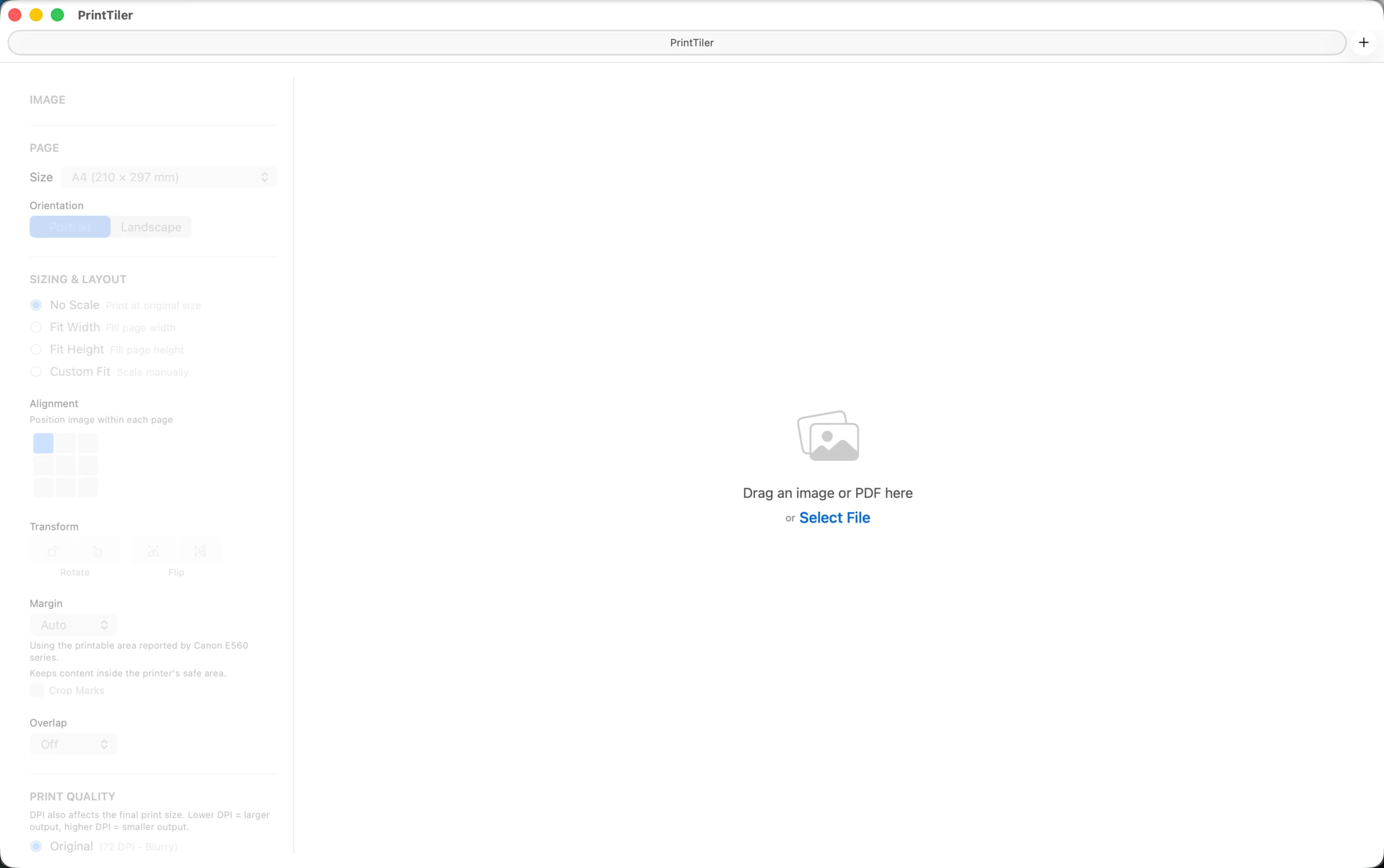
Select the Target Printer and Paper
Choose the printer you will use and check its current status. Select A4, Letter, or the paper actually loaded in the tray. PrintTiler includes additional printer-supported formats in the menu; unsupported presets and Custom remain selectable under More. Confirm the matching paper in the print dialog.
Choose Pages or an Exact Print Size
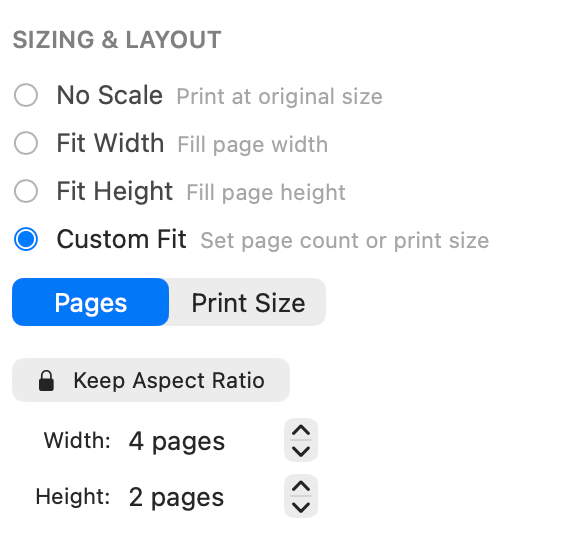
Use Custom Fit → Pages when the goal is a grid such as 3 × 2 sheets. UseCustom Fit → Print Size when the finished poster must be a specific width and height. For a dimensioned PDF whose embedded size is already correct, use No Scale.

Keep the Printer-safe Margin and 5 mm Overlap
Auto Margin uses the selected printer's printable area. Keep the 5 mm overlap default when sheets will be assembled. If you turn Overlap off, Use Recommended can apply a safe margin, restore 5 mm overlap, and turn on crop marks together.
Inspect Every Tile, Then Print at 100%
Use Assembled to inspect the full composition and Pages to inspect each sheet. Pan by dragging, zoom around the pointer with a mouse wheel or trackpad, and double-click to recenter. In the macOS print panel, match the selected paper and orientation, print all pages, keep double-sided printing off, and avoid a second Scale to Fit.

Images, Long Screenshots, and PDF Pages
Images and Long Screenshots
Their print quality depends on pixel dimensions and final physical size. Choose the page grid or print size, then check estimated DPI before enlarging text or fine details across many sheets.
One Long PDF Page
Keep it as one source page and split that page vertically or into a grid. Thelong single-page PDF workflow explains how No Scale and Custom Fit affect its physical result.
Multi-page PDFs
Select the source page you want to tile. PrintTiler prepares one PDF page at a time, which prevents normal document pages from being mistaken for tiles of one large poster.
Keep the Correct Physical Size
Screen zoom is not print size. For an image that must finish at a known width or height, use Custom Fit → Print Size and keep the aspect ratio locked. For a PDF pattern, plan, or drawing with correct embedded dimensions, use No Scale. In both cases, print at 100% or Actual Size and measure one known dimension before using the full stack.
Use the complete exact-size printing and calibration guidewhen a ruler measurement matters or when earlier output came out too small or too large.
Protect Printer Edges and Page Seams
Most printers cannot reach every point on the physical sheet. Auto Margin keeps important content inside the reported printable area, while overlap repeats content at internal page boundaries. These settings solve different problems and can be used together.
Auto Margin
Protects the outer edge of each physical sheet using live or cached printer information.
5 mm Overlap
Provides shared image content for trimming, matching details, and small feed differences.
Crop Marks
Adds a cutting reference inside an enabled margin without replacing the overlap content.
Common Preview-to-Print Mistakes
Choosing Pages per Sheet
This reduces several pages onto one sheet. It cannot enlarge one source page across several sheets.
Applying Scale to Fit Twice
After PrintTiler prepares the tile geometry, another fit operation in the print panel changes the intended size.
Using Borderless Mode for Exact Output
Many borderless drivers enlarge and crop the page. Use the standard paper preset and Auto Margin when dimensions or outer content matter.
Turning Off Overlap Before Testing
Edge-to-edge tiles have no shared content for alignment. Keep 5 mm initially and reduce it only after a successful two-page test.
Frequently Asked Questions
Can Preview tile print one image across multiple pages on Mac?
Preview can scale an image, repeat it on a sheet, or place multiple existing pages on one sheet. It does not provide a poster tiling control that divides one image across several physical sheets. Open the file in PrintTiler to create that layout.
What is the difference between Pages per Sheet and tile printing?
Pages per Sheet reduces multiple existing document pages so they share one physical sheet. Tile printing does the opposite: it enlarges or preserves one source page and divides it across several physical sheets.
Can I tile print a PDF that is open in Preview?
Yes. Open the same PDF in PrintTiler, select the source page, choose the printer and paper, and use No Scale, Custom Fit Pages, or Print Size according to the required physical result.
Can I split a long image or one long PDF page across A4 sheets?
Yes. Treat the long image or PDF page as one source, choose A4 and the target printer, then use a page grid or exact print size. Inspect each vertical page break before printing.
How do I keep an exact size when tile printing from Mac?
Use No Scale for a PDF with correct embedded dimensions or Custom Fit Print Size for a specific width and height. Keep the macOS print dialog at 100% or Actual Size and measure one known dimension before printing the full job.
Can I save the tiled result as a PDF?
Yes. After PrintTiler prepares the tiles, choose Export → PDF Document to save one multi-page PDF. Print it later at 100% with matching paper and orientation, without tiling it again or applying another fit-to-page operation.
Continue with the Right Workflow
For a general image or photo, use the complete image-across-multiple-pages workflow. For a PDF with native dimensions or vector linework, continue with the large PDF tiling guide. After printing, follow the tiled-page assembly guide for trimming and joining.