How to Print Large PDF Files Across Multiple Pages on Mac
Print or export a large PDF as tiled pages on your Mac.
Keep native PDF text and linework vector-based in a multi-page PDF, or export each tiled sheet as PNG, JPEG, or TIFF. See the direct export workflow.
Need to print an A1 blueprint on A4 paper? Or tile a large PDF diagram across multiple sheets? This guide covers how PDF printing differs from images and how to get professional results every time.
Direct answer
Can PrintTiler split a large PDF across multiple pages on a Mac?
Yes. PrintTiler can load a PDF, preserve its intended physical size and native vector text and linework, show the tiled page boundaries, and print or save the result across multiple sheets on macOS.
Best for
- Blueprints, diagrams, posters, and other PDFs that need to span A4 or Letter pages
- Mac users who need more control than the default print dialog provides
Not for
- Editing PDF contents before printing
- Windows or Linux printing workflows
Works on
- macOS 12.0 or later
- PDF files that need tiled printing with controlled scale and alignment
Why PrintTiler instead
- Preview how the PDF will split before you print
- Keep native PDF text and linework vector-sharp while controlling final physical size
In This Guide
- How to Tile Print a PDF on Mac
- Save a Tiled PDF Without Printing
- Export PNG, JPEG, or TIFF Pages
- Split a Long Single-Page PDF Across A4 or Letter
- Why PDFs Print Differently Than Images on Mac
- Understanding PDF Native Size
- Preserve Vector PDF Sharpness
- Scaling Modes for PDFs
- Exact-Size PDF Workflows
- Multi-Page PDF Handling
- Best Practices
How to Tile Print a PDF on Mac
Use this workflow when a PDF is larger than the paper in your printer or when you intentionally want to enlarge it across several sheets.
- Open the PDF in PrintTiler. Drag it into the app or choose Select File.
- Check its native physical size. Dimensioned plans and patterns may need to stay at their embedded size.
- Select the paper actually loaded in the printer. Choose A4, US Letter, or another matching paper size and orientation.
- Choose the scaling mode intentionally. Use No Scale for the PDF's original physical size, or Custom Fit with Pages for a chosen grid or Print Size for exact final dimensions.
- Set Margin and Overlap. Auto Margin keeps content inside the printer's reported safe area; overlap adds repeated content for trimming and assembly.
- Inspect both previews. Check the complete composition in Assembled and individual sheets in Pages. Choose Export to save the tiled pages, or Slice and Print to confirm the macOS print settings.
For accurate output: Do not apply another “Scale to Fit” in the macOS print dialog after PrintTiler has prepared the tiled pages.
Save a Tiled PDF on Mac Without Printing
Use Export to save your layout as one multi-page PDF for printing later or sharing with someone who will print the sheets. Each output page uses the paper dimensions you selected in PrintTiler. The same export workflow also accepts an image source, such as a photo you want to split across A4 or Letter pages.
- Prepare the layout. Choose paper and orientation, set the final size, and check margins, overlap, and crop marks in Pages preview. If the destination printer is available, select it so Auto Margin can use its reported printable area.
- Choose Export, then PDF Document. Set the file name and destination folder directly in the export window.
- Check resolution. PDF sources show Vector and preserve their native vector content. For a bitmap source, choose 150, 300, 600, or custom 72–1200 DPI; a higher setting does not add missing source detail.
- Export and inspect. Follow the page progress or cancel if needed. When complete, PrintTiler reveals the PDF in Finder. Open it to check page count and paper dimensions before printing.
When printing the saved PDF, use the matching paper size, 100% or Actual Size, and single-sided printing. Do not apply poster tiling again: the PDF is already divided into sheets. If another printer needs wider margins, adjust the layout in PrintTiler and export again rather than shrinking every tile. For patterns or plans, measure a known dimension on a test sheet first.
Export Tiled Pages as PNG, JPEG, or TIFF
Choose an image format in the same Export window when you need a separate file for every sheet. PrintTiler saves the pages in a folder with numbered names such as poster-page-001.png. Paper size, margins, overlap, crop marks, rotation, flips, and page order follow the current layout.
- PDF: one ordered document for printing or sharing; preserves native PDF text and linework as vectors.
- PNG: lossless page images for diagrams and artwork when separate raster files are required.
- JPEG: compressed page images with a 50–100% quality control; lower values trade image fidelity for smaller files.
- TIFF: lossless page images with LZW compression for workflows that request TIFF files.
Image exports rasterize the page at your chosen resolution: 150, 300, 600, or custom 72–1200 DPI. Exported files include DPI metadata, but the receiving application can still rescale them. Confirm the intended physical size before printing. For example, a full A4 sheet at 300 DPI is about 2480 × 3508 pixels in portrait, including its margins. Higher DPI increases pixel count and file size; very large pages may exceed the export limit.
The app remembers your last export format, resolution, JPEG quality, and destination folder. With a multi-page source PDF, export covers the tiles of the currently selected source page. Select and export other source pages separately. A raster export does not preserve vector objects or create additional detail in scans and embedded photographs.
Export tiled pages with PrintTiler
Split a Long Single-Page PDF Across A4 or Letter
A long PDF can contain one unusually tall page rather than many normal pages. Printing it directly from a standard viewer often reduces the entire page until the text is unreadable. The useful operation is poster tiling: keep the source page as one document, then divide its height across a sequence of physical sheets.
- Select the long source page. If the PDF has several pages, use the page selector to choose the one that needs tiling.
- Select the target printer and paper. Use A4 or Letter to match the sheets actually loaded.
- Choose the sizing rule. Use No Scale when the PDF's embedded dimensions matter, Custom Fit → Pages for a chosen grid, or Custom Fit → Print Size for exact final dimensions.
- Inspect the vertical breaks. Zoom and pan the Pages preview to make sure text, diagrams, and cut lines remain readable across each boundary.
- Keep 5 mm overlap for assembly. The repeated strip helps reconnect lines or text that cross from one sheet to the next.
One Long Page Is Different from a Multi-Page PDF
Poster tiling splits one selected source page into multiple physical sheets. It does not merge or batch-print all pages in a PDF. For a document that already contains many normal pages, select and prepare each source page separately.
Why PDFs Print Differently Than Images on Mac
Understanding the differences between PDF and image files helps you make better printing decisions. Here's a comparison:
(PNG, JPEG, TIFF)
When to Use PDF vs. Image
- Use PDF for documents with text, diagrams, CAD drawings, architectural plans, or vector graphics
- Use Image for photographs, digital art, screenshots, or raster graphics
PrintTiler 1.11.0 keeps native PDF text, shapes, and linework vector-based while creating the tiled output, so there is no need to convert the PDF to images first.
Understanding PDF Native Size
Unlike images that are defined by pixels, PDFs have a native physical size embedded in the file. A PDF might be defined as "A1 size" (594×841 mm) or "24×36 inches" regardless of the screen resolution.
When you load a PDF in PrintTiler:
- The app reads the PDF's native page dimensions
- These dimensions are displayed in the image info area
- The native size determines how the PDF maps to your chosen paper size
Example: Printing an A1 PDF on A4 Paper
An A1 PDF is eight times the area of A4. With compatible orientation and no printer-safe margin, it maps nominally to 4×2 = 8 A4 sheets at original size. Printable margins can increase the required grid, so confirm the physical Print Size shown by the app rather than relying only on paper names.
This calculation happens automatically in PrintTiler when you use "No Scale" mode.
Need a quick reference for A4 dimensions and pixel sizes at 150 or 300 DPI? See our A4 size guide.
How to Print a Vector PDF Without Losing Sharpness
Native PDF text, paths, and shapes do not have a fixed bitmap DPI. PrintTiler keeps those elements vector-based through tiling and saved PDF output instead of first converting the whole page into a low-resolution image. Resolution handling for PDFs therefore differs significantly from images:
Vector Content
Text, shapes, lines, and vector graphics in PDFs are resolution-independent. They remain defined by geometry through the tiled output rather than being enlarged as pixels.
Result: Final detail is limited by the printer, line weight, media, and driver rather than an early bitmap conversion.
Embedded Images
If your PDF contains embedded raster images (photos, scanned content), those images have a fixed resolution. Scaling up will reduce their effective DPI.
Result: Quality depends on the embedded image resolution.
Vector Output for PDFs
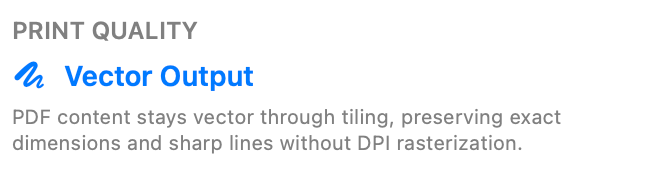
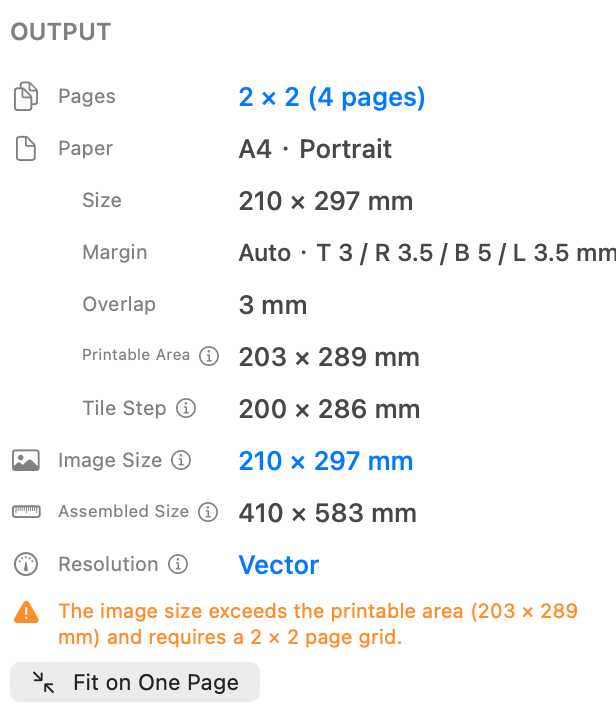
For a native PDF page, PrintTiler shows Vector Output and reports the Output resolution as Vector. Embedded photos or scans remain raster content with their own resolution limits.
Does Tiling a PDF Rasterize It?
PrintTiler preserves native PDF objects while dividing the source page, so the tiling step does not rasterize the complete document at a fixed DPI. A physical printer still renders the prepared page through its driver or raster image processor at the device's output resolution. Embedded scans, photos, and other bitmap elements remain raster content throughout the workflow.
To check the source, zoom deeply into the PDF before printing. Smooth text and line edges indicate native vector content; visible square pixels indicate a scan or earlier raster export. A .pdf filename alone does not guarantee that every object inside the file is vector.
Scaling Modes for PDFs
All PrintTiler scaling modes work with PDFs, but behave slightly differently:
No Scale (Recommended for Documents)
Prints the PDF at its native size. An A1 PDF prints at A1 dimensions, spanning multiple A4 pages. This preserves the original design intent.
Best for: Architectural plans, engineering drawings, and documents where exact scale matters.
Fit Width / Fit Height
Scales the PDF to fit exactly one page in the chosen dimension. Useful when you want to control the final poster width or height.
Best for: Posters where you want a specific final dimension.
Custom Fit
Choose Pages to specify exactly how many pages wide and tall the output should be, or choose Print Size to enter exact final physical dimensions.
Best for: A chosen page grid or a specific poster size that differs from the PDF's native dimensions.
Scale Matters for Technical Documents
For blueprints, floor plans, and technical drawings, maintaining the correct scale is critical. A "1:100" scale drawing must print at its intended size for measurements to be accurate. Always use "No Scale" mode for these documents.
Exact-Size PDF Workflows
“Print this PDF large” can mean different things. Choose settings from the document's purpose, not just its appearance on screen.
Sewing Patterns
Use No Scale, then measure the pattern's test square before cutting fabric. Keep the same paper size and avoid an additional fit-to-page operation in the macOS print dialog. Follow the completeactual-size sewing pattern workflow before printing every tile.
Blueprints and Engineering Drawings
Use No Scale when dimensions or a stated drawing scale must remain valid. Confirm one known dimension with a ruler after printing; do not assume a sharp preview proves physical scale. Follow the complete blueprint and technical drawing workflowfor source PDF preparation, A1-to-A4 tiling, vector checks, and paper measurement.
Maps
Preserve native size when a scale bar matters. For reference-only maps, Custom Fit can enlarge labels and details, but the original map scale will change. For tabletop maps with a fixed cell size, follow the 1-inch battle-map grid example to calculate the final dimensions and verify one printed square.
Posters and Artwork
Use Custom Fit → Print Size when the visual result and wall size matter more than the PDF's embedded dimensions. Check the reported Print Size and any embedded raster-image quality before printing.
Multi-Page PDF Handling
Unlike standard macOS print dialogs, PrintTiler lets you navigate and split multi-page PDFs with precise control over scaling, alignment, and overlap.
When you open a PDF with multiple pages, a page selector appears in the sidebar allowing you to choose which page to print.
Page Navigation Controls
- Page indicator — Shows "Page X / Y" (current page / total pages)
- Arrow buttons — Click left/right arrows to navigate between pages
- Direct input — Type a page number to jump directly to that page
Each page can have different dimensions. When you switch pages, PrintTiler automatically recalculates the layout based on the new page's size and aspect ratio.
One Page at a Time
PrintTiler prints one PDF page at a time. Select the page you want to print, configure your tiling settings, then print. To print multiple pages from the same PDF, repeat this process for each page.
Best Practices for PDF Printing
Check the Native Size First
Before choosing settings, note your PDF's native dimensions shown in the info area. This helps you understand how many pages it will span at original size and whether scaling is needed.
Use "No Scale" for Exact Reproductions
When the PDF's original size matters (technical drawings, scaled plans), always use "No Scale" mode. This ensures measurements and proportions are preserved.
Vector PDFs Scale Better Than Images
If you have a choice between a PDF and an image version of the same content, the PDF will usually produce better results when scaling up, as vector elements remain sharp at any size.
Watch for Embedded Images
PDFs that contain scanned documents or embedded photos will have quality limitations similar to image files. The vector advantage only applies to native vector content.
See Related Guides
For more printing tips, see our resolution settings guide, follow the blueprint printing guide for measurement-critical plans, use overlap settings for easier alignment, learn how to assemble tiled prints, or verifya sewing pattern at actual size. If the file is currently open in Preview, start with the Preview-to-tiled-print workflow.
Common Questions
How do I save a tiled PDF on Mac without printing it?
Set up the tiled layout in PrintTiler, choose Export, select PDF Document, enter a file name and destination folder, then export. The result is one multi-page PDF with your paper size, margins, overlap, and crop marks. Native PDF vectors remain vector-based, and the system print dialog does not need to open.
Can I export each tiled page as PNG, JPEG, or TIFF?
Yes. Choose the image format in Export and set 150, 300, 600, or custom 72–1200 DPI. JPEG also offers 50–100% quality. PrintTiler saves one numbered image per output sheet in a folder. These are tiles of the selected source page, not a batch conversion of every page in the original PDF.
Can I split one long PDF page across multiple A4 or Letter sheets on Mac?
Yes. Select the long PDF page in PrintTiler, choose the target printer and A4 or Letter paper, then use No Scale to preserve its native dimensions or Custom Fit to choose a page grid or exact final size.
Can Preview poster print one PDF page across multiple sheets?
Preview can scale a PDF and place multiple existing PDF pages on one sheet, but it does not provide a poster tiling control for splitting one source page across several sheets. Open that page in PrintTiler for a tiled layout.
Can I print a multi-page PDF document?
PrintTiler supports multi-page PDFs through a page selector. It prepares and prints one selected PDF page at a time, so repeat the workflow for each source page you need.
Why does PrintTiler show Vector instead of DPI for my PDF?
Native PDF text and linework do not have a fixed bitmap DPI. PrintTiler keeps that content vector-based through tiling, while embedded scans and photos retain their own pixel resolution.
Does tiling a PDF rasterize its vector content?
Not in PrintTiler. Native PDF text, paths, and shapes remain vector-based through tiling and saved PDF output. Embedded scans and photos remain raster, and the physical printer renders the final page at its own device resolution.
How can I tell whether a PDF is vector or scanned?
Zoom deeply into the source PDF: native vector lines and text remain smooth, while a scan reveals pixels. PrintTiler reports Vector Output for a native PDF page, but images embedded within that page still have fixed pixel resolution.
What is the best format for printing large technical drawings?
PDF is usually the best choice because native vector lines, shapes, and text stay sharp when tiled. Preserve the intended physical scale with No Scale and verify one known measurement after printing.
Why does my PDF look different from the original when printed?
A scaling mode other than No Scale intentionally resizes the PDF. Use No Scale to preserve its embedded physical dimensions, and avoid applying Scale to Fit again in the macOS print dialog.
Will a scanned PDF stay sharp when enlarged?
A scanned PDF contains raster pixels, so enlarging it reduces effective resolution just like enlarging an image. Keep it near its original size or use a higher-resolution scan when possible.