How to Print a Blueprint at Scale on Mac
A blueprint, architectural plan, or engineering drawing may be larger than the paper in a home or office printer, but shrinking it to one sheet makes its stated scale unusable. The reliable workflow is to export a correctly sized PDF, preserve that page size, divide it across standard sheets, and verify a known measurement on paper.
Direct answer
How do you print a blueprint at its intended scale on a Mac?
Export the drawing as a PDF with the correct sheet dimensions, open the large page in PrintTiler, select the real printer and paper, choose No Scale, review the tiled page boundaries, then print at 100% or Actual Size and measure a known dimension before printing the full set.
Best for
- Blueprints, floor plans, workshop drawings, and technical diagrams that need to span A4 or Letter sheets
- Reference and working prints whose physical scale can be checked against a known dimension
Not for
- Opening or editing native CAD formats such as DWG
- Replacing professionally issued plan sets when a permit, contract, or site procedure requires approved large-format output
Works on
- macOS 12.0 or later
- Native PDF pages with an embedded physical size, scale bar, or known dimension
Why PrintTiler instead
- Keeps native PDF text and linework vector-based while creating tiled pages
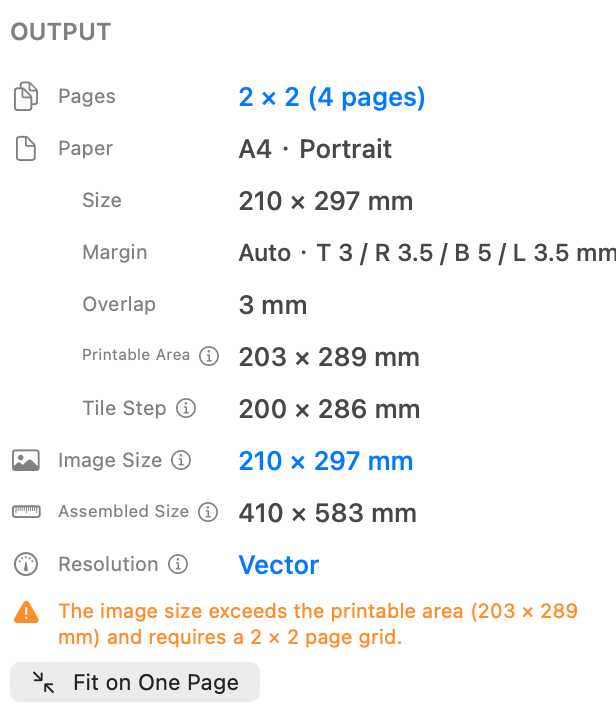
- Shows physical size, printable area, page breaks, margins, and overlap before printing
In This Guide
Prepare the Source Drawing as a PDF
PrintTiler accepts PDF files rather than native CAD documents. In AutoCAD, Vectorworks, Archicad, a drawing app, or another authoring tool, first export the required sheet as a PDF. The exported page should contain the complete title block and retain the intended physical sheet size, such as A1, A0, ANSI C, ANSI D, or ARCH D.
Do not crop the PDF tightly around the visible linework if the sheet boundary carries its physical size. Keep a dimension line, scale bar, calibration mark, or another known distance that can be measured after printing. A page that looks sharp on screen but has unknown dimensions cannot prove that the paper output is correct.
Use the PDF Sheet, Not a Screenshot
A screenshot discards the PDF's embedded page dimensions and converts native text and linework into pixels. Export or print the drawing to PDF from its authoring application, then tile that PDF page directly.
Drawing Scale Is Different from the Print Percentage
A notation such as 1:100 or 1/4 in = 1 ft describes how model dimensions are represented on the drawing sheet. The final print dialog's 100% setting has a different job: it sends the already prepared PDF page to paper without applying another enlargement or reduction.
Example: Print a Floor Plan at 1:100 or 1:50
To work out the expected paper measurement, divide the real dimension by the scale denominator using the same units. A wall that is 10 m long is 10,000 mm, so it should measure 100 mm at 1:100 or 200 mm at 1:50.
- The PDF is already correctly exported at 1:100: use No Scale in PrintTiler, print the tiles at 100%, and verify that the 10 m wall measures 100 mm on paper.
- You need to change that PDF from 1:100 to 1:50: the drawing must become twice as large in each direction. Prefer exporting a new 1:50 PDF from the drawing application. If intentionally resizing the existing PDF, double its physical width and height in Custom Fit → Print Size, then verify the 200 mm reference.
- The PDF was previously reduced to fit a smaller sheet: its printed scale label may no longer describe its geometry. Verify a known dimension before relying on No Scale.
No Scale preserves the PDF's existing physical dimensions; it does not interpret a “1:100” label or repair an incorrectly scaled export. For deliberate resizing and measurement checks, use the exact-size printing workflow.
How to Print a Blueprint Across Multiple Pages on Mac
- Export the correct drawing sheet as PDF. Confirm its title block, stated scale, page size, and at least one known measurement.
- Open the PDF in PrintTiler. If it contains several sheets, select the source page you need. PrintTiler prepares one selected PDF page at a time.
- Select the target printer and loaded paper. Match A4, Letter, A3, Tabloid, or a custom sheet and choose the real orientation.
- Choose No Scale. Use this when the PDF's embedded page dimensions are already correct. Do not choose Fit Width, Fit Height, or a new custom size for a measurement-critical plan.
- Set margins and overlap. Auto Margin protects content from the selected printer's non-printable edges. Start with 5 mm overlap when repeated linework will help align neighboring pages.
- Inspect both previews. Use Assembled to check the complete drawing and Pages to inspect dimensions, labels, and fine lines near every boundary.
- Print at 100% or Actual Size. Match the paper again in the macOS print dialog, turn off Scale to Fit and borderless enlargement, and keep two-sided printing off.
- Measure a test before committing. Print the smallest subset containing a known horizontal and vertical dimension, then compare the paper result with the source.

How to Print an A1 Blueprint on A4 Paper
A1 measures 594 x 841 mm and has eight times the area of A4. With compatible orientation and no printer-safe margins, an A1 page maps nominally to eight A4 sheets at its original size. A real printer cannot usually reach every sheet edge, so safe margins and overlap may increase the required grid without changing the blueprint itself.
- Confirm that the source PDF page is actually A1 rather than an A1 drawing reduced onto another page size.
- Select A4 and the matching orientation for the paper loaded in the printer.
- Use No Scale and confirm that the reported Image Size remains 594 x 841 mm, allowing for orientation.
- Review the calculated page grid after Auto Margin and overlap are applied.
- Print at 100% and measure a known dimension before assembling every sheet.
Page Count Does Not Define Scale
Margins, overlap, orientation, and printable area can change the number of sheets. The preserved PDF Image Size and the measured paper reference determine whether the scale is correct.
How to Preserve PDF Vector Linework When Tiling
Native PDF text, paths, and shapes do not have a fixed bitmap DPI. PrintTiler keeps those elements vector-based while it creates the tiled pages, so the tiling step does not first convert fine drawing lines into a low-resolution image. Embedded site photos, scans, and raster renderings remain pixel-based and retain their own resolution limits.

Native Vector Blueprint
Lines and text stay resolution-independent through the tiled PDF output. Final detail still depends on printer resolution, line weight, media, and driver behavior.
Scanned Blueprint PDF
The PDF page contains pixels from a scanner. Enlarging it lowers effective image resolution even though the filename ends in .pdf.
Mixed PDF
Vector annotations and linework remain vector, while embedded photos, scans, shaded renderings, and other images keep their individual pixel limits.
Does Printing a Vector PDF Eventually Rasterize It?
A physical printer renders every page through its driver or raster image processor at the device's output resolution. The useful distinction is whether the document is rasterized prematurely at a low resolution. PrintTiler preserves native vector objects through tiling and saved PDF output so the final print path receives the original line and text geometry.
Verify the Printed Blueprint Scale
Software can preserve PDF geometry, but the printer driver, borderless mode, media feed, and mechanical calibration still affect the physical sheet. Treat measurement as part of the workflow rather than assuming a sharp preview proves scale.
- Choose a known dimension or scale bar in a sheet area that can be printed with as few tiles as possible.
- Measure the expected paper length from the drawing's stated scale before printing.
- Print at 100% and let the paper lie flat.
- Measure both a horizontal and a vertical reference with the appropriate ruler.
- Compare the differences with the tolerance required by the project and printer.
Use a tiled home or office print for the purpose your project permits. A reference print, workshop template, design review, or field markup may have different requirements from a sealed plan set, permit submission, or contractual construction document.
Why a Technical Drawing Prints at the Wrong Size or Quality
Every Measurement Is Too Small
Scale to Fit or shrink-to-printable-area is active. Use No Scale in PrintTiler and 100% or Actual Size in the final print dialog.
The Output Is Slightly Too Large
Borderless printing may be applying overscan. Use the standard paper preset and turn off borderless enlargement.
Only One Direction Is Wrong
Check paper dimensions, orientation, aspect ratio, driver settings, and mechanical calibration separately for the X and Y axes.
Lines Look Pixelated
Zoom into the source PDF. If the lines reveal pixels, the drawing was scanned or rasterized before PrintTiler received it; export a native PDF from the authoring application when possible.
Lines Disappear or Look Too Light
Very thin line weights, low printer resolution, draft mode, media choice, or driver color conversion can affect output even when the source remains vector.
Content Is Missing at Sheet Edges
Use Auto Margin for the selected printer and paper, then add overlap for internal seams. Margin and overlap solve different edge problems.
Blueprint and Technical Drawing Printing Checklist
- The source is a PDF exported from the drawing application, not a screenshot
- The PDF page has the intended sheet dimensions and complete title block
- A known dimension, scale bar, or calibration reference is available
- The selected printer, paper, and orientation match the loaded sheets
- No Scale preserves the PDF page's embedded physical size
- Native linework reports Vector Output
- Auto Margin protects non-printable edges and overlap supports assembly
- The macOS print dialog uses 100% or Actual Size without borderless overscan
- A measured test passes in both directions before the full set is printed
- The tiled output is suitable for the project's intended use and tolerance
Continue with the Right Reference
Read the broader large PDF tiling guide for multi-page PDF handling and sizing modes. If the paper result remains wrong after a 100% test, use theexact-size printing diagnosis. For missing edges or difficult seams, continue with margin and overlap settings.
Common Questions
How do I print a blueprint across multiple pages on a Mac?
Export the blueprint as a correctly sized PDF, open its large source page in PrintTiler, choose the real printer and paper, select No Scale, inspect the page grid, then print at 100% or Actual Size and measure one known dimension.
Can I print an A1 blueprint on A4 paper at the original size?
Yes. An A1 PDF can be divided across A4 sheets without changing its embedded physical size. With compatible orientation and no printer-safe margins, A1 is nominally eight A4 sheets; printable margins and overlap can increase the actual page count.
Does tiling a blueprint PDF rasterize its vector lines?
PrintTiler keeps native PDF text, shapes, and linework vector-based through tiling and saved PDF output. Embedded scans and photos remain raster content, and the physical printer ultimately renders the page at its own device resolution.
What file format should I use for a technical drawing?
Use a PDF exported from the drawing or CAD application with the intended page dimensions and fonts preserved. PrintTiler does not open native CAD files such as DWG directly, so export the required sheet to PDF first.
Why did my technical drawing print at the wrong scale?
The usual causes are Scale to Fit, a paper-size mismatch, borderless overscan, or printer-driver scaling after the tiled pages leave the app. Match the paper and orientation, print at 100%, and verify a known dimension in both directions.
How can I tell whether a blueprint PDF is vector or scanned?
Native vector lines and text remain sharp when you zoom deeply into the PDF, while a scan reveals pixels. In PrintTiler, a native PDF page reports Vector Output, but embedded scanned content still has a fixed pixel resolution.