AI Image Enhancement for Tiled Printing on Mac
Prepare images for tiled printing on Mac with local 2×/4× AI upscaling, denoising and sharpening. Optional Beta; requires Apple silicon.
Requirements and limits
PrintTiler 1.15.0 or later on macOS 12 or later, on a Mac with Apple silicon; AI Enhancement is local-only, bitmap-image-only, needs no account or MCP, and never processes PDF pages.
Step by step
- Open a bitmap image
Open a PNG, JPEG, TIFF, HEIC, or WebP file in PrintTiler. AI Enhancement is an image-printing feature: if you opened a PDF, the AI section does not appear and its pages stay vector.
- Set the physical layout first
Choose the target printer, paper size, physical size or page grid, margins, and overlap. AI only increases the raster detail used for each page; it does not change the paper size, page grid, overlap, or printer calibration.
- Start gently: Balanced 2×
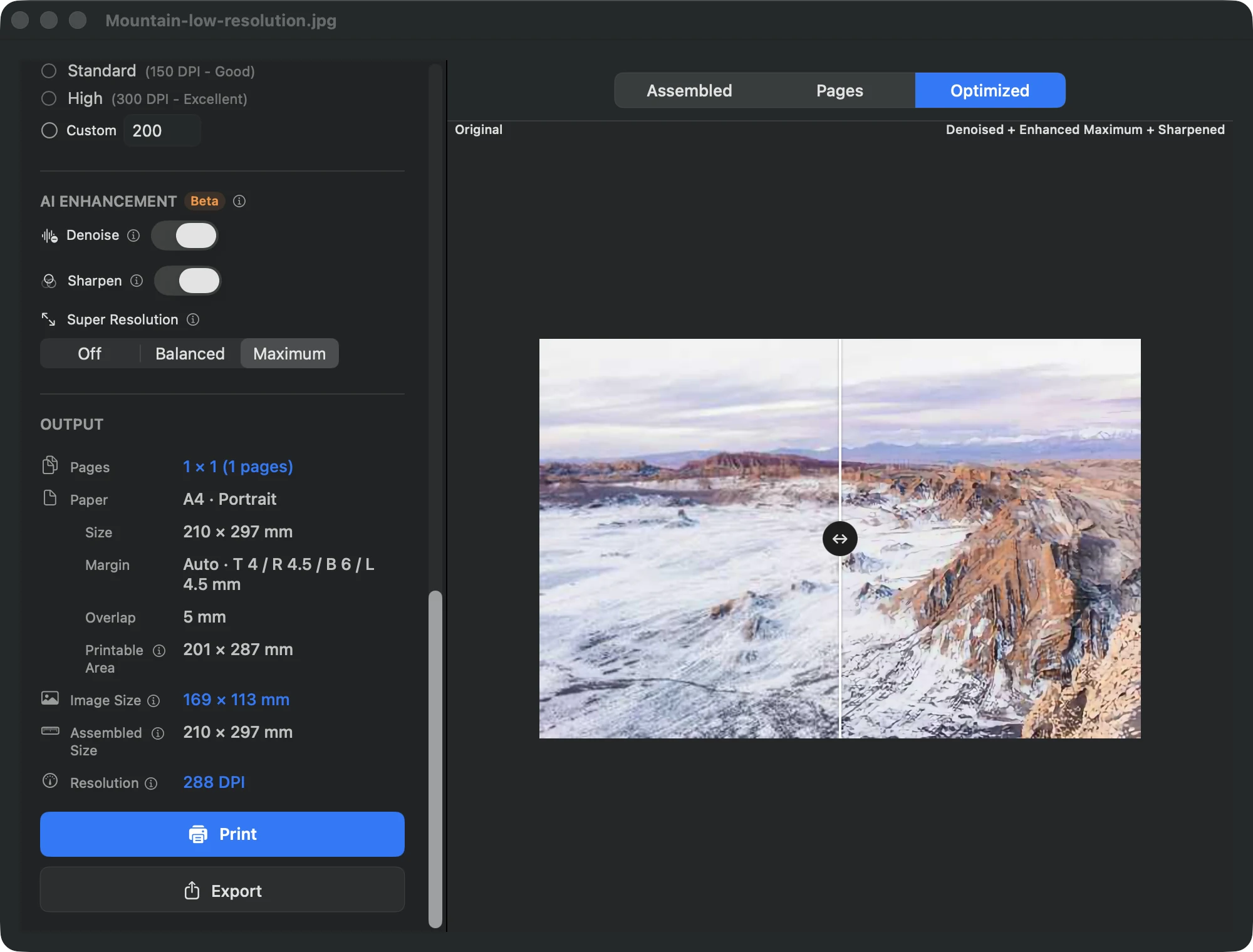
Denoise and Sharpen are off by default. Enable only what your image needs, start with Super Resolution at Balanced 2×, and move to Maximum 4× only when a low-resolution source still looks soft in the preview.
- Inspect the Optimized preview
Selecting any processing switches the preview tab to Optimized, which can take a moment. Use the original-versus-enhanced divider to check for halos, smeared small text, and leftover noise before you commit to printing.
- Review the assembled layout and test print
Switch between Assembled and Pages to confirm the physical size and page count. Print a single page or a small subset first so you can judge the result on real paper.
- Print and wait for per-page processing
Click Print. PrintTiler enhances the job one page at a time, so 2× and especially 4× take longer; the macOS print settings appear afterwards. If you cancel or an error occurs, the app asks whether to print the original or cancel, and never falls back on its own.
The three controls
Denoise (toggle, off by default)
Reduces image noise before super resolution, layout, and printing, and can affect the bitmap source on its own.
Sharpen (toggle, off by default)
Improves edge clarity after super resolution and is independent of the Super Resolution menu.
Super Resolution (Off · Balanced 2× · Maximum 4×)
Off is the default; Balanced applies 2× upscaling for speed, Maximum 4× for low-resolution images at a higher cost in time and memory.
What enhancement can and cannot do
Enhancement adds interpolated raster detail to help a low-resolution image survive a large print. It cannot reliably restore detail that the source never contained, and it is not proof of true 300 DPI or of recovered detail. For text, measurement drawings, or anything you must measure on paper, prefer the original conversion path and verify with a test print.
PDFs, exports, and fallbacks
PDF pages are never enhanced: their vectors stay vector, and rasterizing precision PDFs just to reach this feature is not recommended. Version 1.15 has no separate super-resolution or sharpening export command; direct export is not the AI print path. Choosing Print Original after a cancel or error bypasses super resolution and sharpening but keeps an already denoised source, so turn Denoise off as well to retry with a fully untouched image. MCP and other external assistant tooling do not control these settings.
Troubleshooting
- No AI section appears: you may have opened a PDF, be running on an Intel Mac, be using a version older than 1.15.0, or be on unsupported hardware. Ordinary tiled printing still works in those cases.
- The Optimized tab stays on “Preparing optimized preview...”: 4× on a large image takes time. Wait for the current page, or switch Super Resolution back to Balanced 2× or Off.
- A memory or model error appears: lower Super Resolution to Balanced 2×, or turn it off; 4× needs the most memory and time.
- The result looks worse than the original: turn Sharpen off first, compare at the same zoom level, and re-check the source. Noise reduction cannot invent missing detail.
- You canceled or hit an error: the dialog offers Print Original or Cancel. Print Original is not a silent fallback, and it still uses a denoised source if Denoise was already applied; turn all three controls off for a completely unprocessed print.
Frequently asked questions
Does AI Enhancement upload my images to a server?
No. All AI processing runs locally on the Mac for this feature. Nothing is sent to PrintTiler servers, and no account, MCP server, or external AI client is required to use it.
Does enhancement change the printed poster size or page count?
No. It raises the raster resolution of each page only. Paper size, physical output size, page grid, overlap, and calibration stay exactly as planned, so fix the layout before you print.
Can I use AI Enhancement on PDF pages?
No. PDF pages keep their vector content and are printed without AI processing. Do not rasterize a precision PDF only to try this feature; keep the vectors for line work, text, and measured drawings.
Will AI give me a guaranteed sharp 300 DPI print?
No. It can make a low-resolution bitmap look better at large sizes, but it cannot guarantee recovered detail or a true 300 DPI result. Judge the Optimized preview and a test print instead of trusting the number alone.
How do I print a completely unprocessed image?
Turn Denoise off, Sharpen off, and Super Resolution to Off before printing. If you already canceled an AI job, note that Print Original keeps any denoising that was applied, so reset all three controls to start from the untouched source.