Why Use a Native Mac App for Tiled Printing?
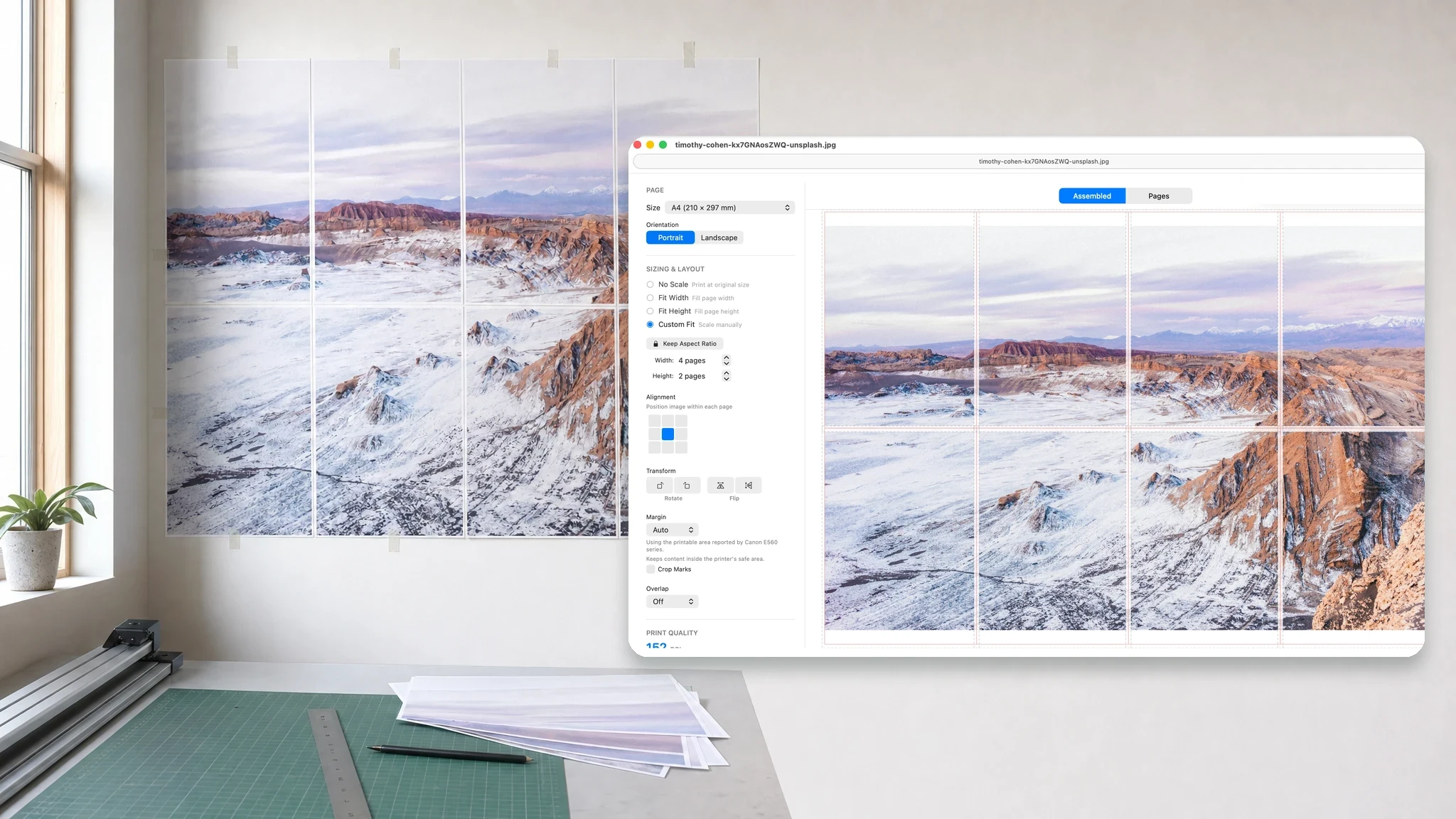
Tiled printing is more than dividing an image into rectangles. A dependable result also depends on physical paper size, the area a printer can actually reach, PDF page geometry, output resolution, and the final macOS print settings. A native Mac app can bring those parts into one local workflow.
Direct answer
Native matters when the job reaches real paper.
A browser tool may be enough for a quick, one-time image split. When accurate scale, PDF handling, printer-safe margins, offline access, and repeatable results matter, a native Mac app provides more control over the complete printing workflow.
Best for
- Posters, plans, patterns, maps, and artwork that must print at a predictable size
- Private or large image and PDF files that should remain on the Mac
Works on
- Images and individual pages from multi-page PDF documents
- A4, Letter, other standard paper sizes, and custom paper dimensions
Why PrintTiler instead
- Uses the printable area macOS reports for the current printer and paper
- Prepares the page layout before handing the finished job to the system print dialog
In This Guide
What “Native Mac App” Means in PrintTiler
“Native” should describe how the product works, not simply where it can be downloaded. PrintTiler is built for macOS and uses the operating system's document, graphics, PDF, printer, and print-panel capabilities directly. It is also distributed as a sandboxed Mac app, so file access begins with an image or PDF you explicitly select or drag into the app.
This matters because the tiled layout does not live in isolation. PrintTiler can prepare the artwork locally, calculate pages in physical units, inspect printer-reported limits, and then open the familiar macOS print dialog with the completed multi-page job.
Your Images and PDFs Stay in the Local Workflow
PrintTiler loads an image or PDF directly from the file you select. Image decoding, PDF page selection, scaling, rotation, alignment, margin calculation, overlap, preview rendering, and page generation happen on the Mac. The document itself is not sent to PrintTiler servers for conversion.
Local processing is useful for personal photographs, unreleased artwork, classroom materials, floor plans, sewing patterns, and technical drawings. It also removes the upload and download step for large source files. For PDF behavior and physical page sizing, see How to Print Large PDF Files Across Multiple Pages.
Auto Margin Uses Information from the Printing System
Most printers cannot place ink across the entire sheet. The unreachable area can differ by printer, paper, and even by edge. A universal 5 mm setting is a useful fallback, but it cannot describe every device accurately.
PrintTiler's Auto Margin asks macOS for the printable area associated with the current printer and paper. It converts those bounds into per-edge margins and keeps the tiled content inside that area. If you choose a smaller margin, the output summary can warn that part of the print may be clipped.
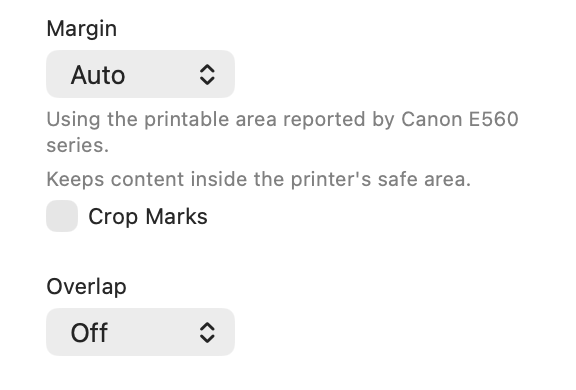
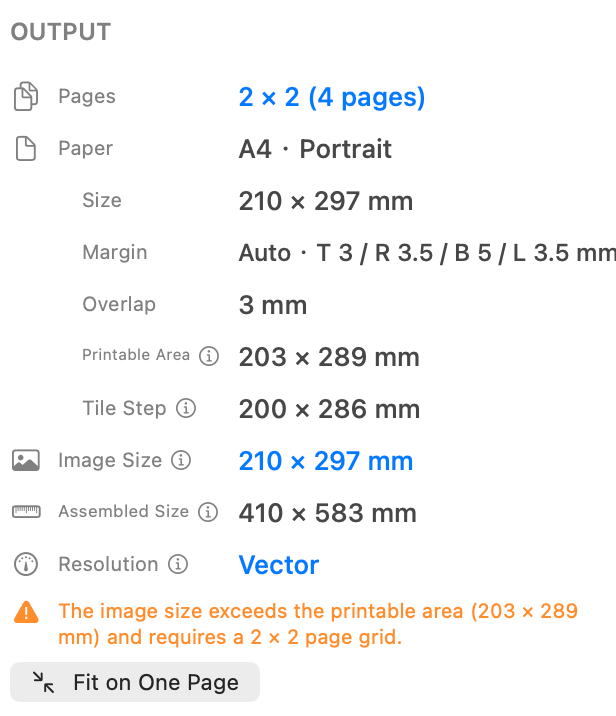
For a complete explanation of outer-edge clipping, asymmetric printer margins, and borderless overscan, readWhy Is My Printer Cutting Off the Edges?
The Layout Reaches the macOS Print Dialog at Its Intended Size
PrintTiler calculates the tiled pages before printing. It creates pages at the selected physical paper size, preserves the completed layout at 100% scale, and then uses the system print panel. You can still choose the printer and copies in the standard Mac interface without asking another application to tile the artwork again.
Keeping those responsibilities separate helps avoid a common failure: preparing a correctly sized tiled PDF and then accidentally applying a second “Fit to Page” operation in the print dialog. PrintTiler can also detect when the paper selected in the system panel does not match the layout prepared in the app.
Where a Native Mac Workflow Makes the Difference
- Accurate physical output: paper dimensions, DPI, margins, overlap, and scale are handled together.
- Printer-safe edges: Auto Margin responds to the printable area reported for the actual setup.
- PDF-aware input: choose a page and work from its embedded page dimensions.
- Predictable repetition: prepare similar poster, plan, pattern, or classroom jobs in one focused interface.
- No document upload: the artwork remains part of the local Mac workflow.
- Offline core tools: prepare and print even when a web service is unavailable.
Native does not remove the need for a test print
Printer drivers and borderless modes can still resize or crop output. Confirm the same paper and orientation in PrintTiler and the macOS print panel, then print one outer-edge page before committing the full job.
Offline Use, Privacy, and Optional Feedback
The core PrintTiler workflow works offline, and selected images and PDFs are not uploaded. Network access is used only for actions that require it. In particular, if you choose to submit in-app feedback, PrintTiler sends the selected issue category, your optional note and email, app and macOS details, and technical print diagnostics.
Feedback diagnostics can include file type and dimensions, page setup, margins, resolution, printer name, and the print result. They do not include the image or PDF content or the document's file name. See thePrivacy Policy for the complete disclosure.
Frequently Asked Questions
Does PrintTiler upload my images or PDFs?
No. PrintTiler opens, previews, tiles, and prints the documents you select locally on your Mac. Image and PDF content is not uploaded to PrintTiler servers. If you choose to submit feedback, the app sends your feedback and technical print diagnostics, but not the document or its file name.
Does PrintTiler work without an internet connection?
Yes. The core workflow for opening a file, preparing the tiled layout, previewing pages, exporting a PDF, and printing works offline. An internet connection is needed only for actions such as voluntarily submitting in-app feedback.
Why does a native Mac app help with printer margins?
A native app can use the macOS printing system to read the printable area reported for the current printer and paper. PrintTiler uses that information for Auto Margin and warns when a selected margin may place content outside the printer's safe area.
Can a browser tool still split an image into pages?
Yes. A browser tool may be sufficient for a simple, one-time image split. A native workflow becomes more useful when you need printer-aware margins, accurate physical sizing, local PDF handling, offline access, and repeatable output through the macOS print system.