Why Is My Printer Printing the Wrong Size?
When a print comes out smaller or larger than you designed, the file is usually fine. The printed size changed somewhere on the way to paper: a scaling option, a paper mismatch, a DPI assumption, or the printer itself. Each cause leaves a different clue, and each has a direct fix on Mac.
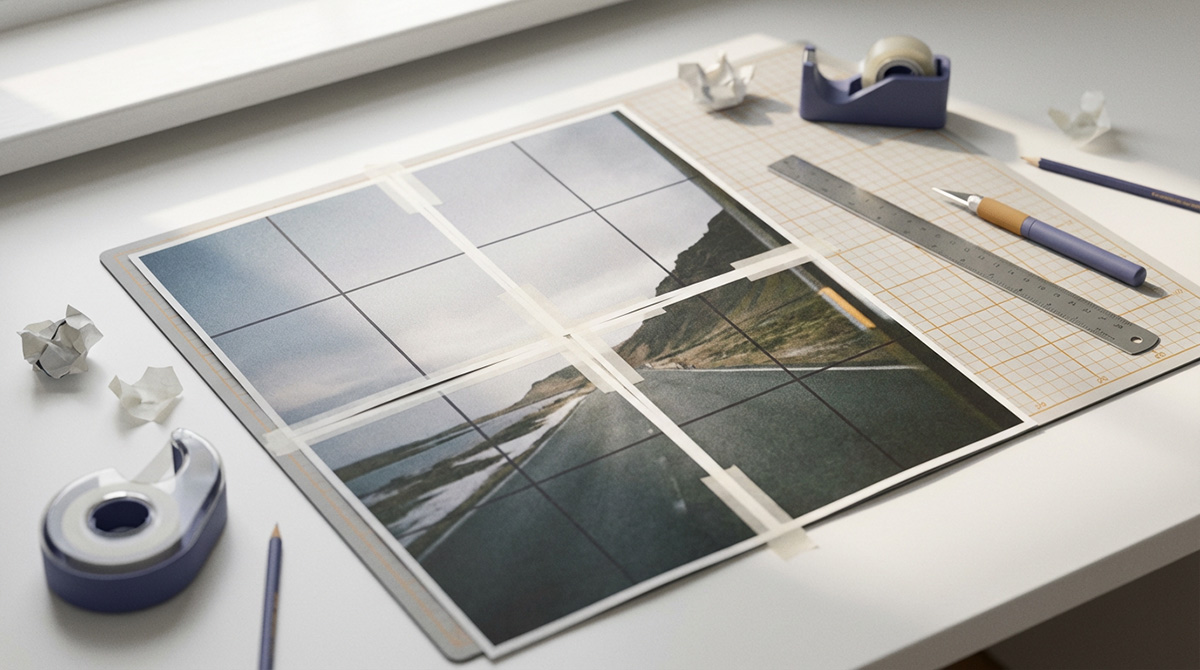
Why does my printer print the wrong size?
Prints come out the wrong size when something rescales the job: Fit to Page or Scale to Fit in the print dialog, a paper-size or orientation mismatch, a DPI assumption about the source file, or a printer that consistently feeds paper long or short. Print a test page at 100% scale with a known reference length, measure it, and correct the cause that matches.
Best for
- Prints that finish completely but smaller or larger than designed
- Sewing patterns, templates, and drawings that must measure true
- Jobs where the size changed after switching printers or paper
Not for
- Content missing at the sheet edges, which is a margin problem
- Color, density, or sharpness issues that look like size problems
Works on
- macOS 12.0 or later
- PrintTiler 1.13 or later
Find the right next step
- Check print-dialog scale, paper size, and orientation first in settings troubleshooting.
- Need a print to measure a specific size? Follow the exact-dimensions guide.
- Only if the same proportional error persists after correct scale and paper checks, see printer hardware calibration.
- If content is missing at the page edge rather than the whole print being the wrong size, use missing-edge troubleshooting.
Why Print Size Changes Between the App and the Paper
The printed size you see on paper is the result of a chain: the source file, the app layout, the macOS print dialog, and the printer's feed mechanism. A size error means one link in that chain changed the geometry. These are the causes in order of how often they appear:
- Fit to Page or Scale to Fit: the macOS print dialog enlarges or shrinks pages that were already laid out for the paper. This is the most common cause of both oversized and undersized output.
- Paper-size mismatch: an A4 layout sent to a Letter setting, or the reverse, changes the printable geometry and can silently rescale the job.
- Orientation mismatch: portrait pages printed through a landscape driver setting stretch or squeeze the layout along one axis.
- DPI assumption: a source image's pixel count only becomes a physical size after a DPI value is applied. A file assumed to be 300 DPI but actually tagged 72 DPI prints more than four times larger than expected.
- App-level scaling: a zoom percentage in a viewer or editor that is mistaken for a print scale changes the job before the dialog.
- Printer hardware error: feed rollers, gear ratios, and media handling can make one printer consistently produce pages a few percent long or short, in one direction or both.
Match the Symptom to the Cause
Fix Wrong-Size Prints Step by Step
Work through the fixes in this order. Each step removes one possible cause, so the real cause is the first step that changes the result.
- Print a single test page containing a known reference, such as a 100 mm or 4 in square, at the current settings, and measure it on paper.
- Open the macOS print dialog and set the scale to 100% or Actual Size. Clear Scale to Fit, Fit to Page, and any shrink-to-fit option.
- Confirm that the paper size and orientation in PrintTiler match the paper loaded in the tray and the settings in the print dialog.
- Compare the output size PrintTiler reports with your target size, so you know whether the error exists before the print dialog.
- Reprint the test page and measure again. If the error is gone, the cause was dialog scaling or a paper mismatch.
- If the same proportional error remains, measure it precisely and run Physical Calibration for the printer as described below.
Measure Two References Before Blaming Hardware
Measure the horizontal and vertical directions separately. A single-axis error points at feed or orientation. A proportional error in both axes points at scaling. Write both numbers down; you will need them if calibration turns out to be necessary.
When the Printer Itself Is the Cause
If every job from one printer comes out proportionally too large or too small, and the print dialog is already at 100%, the printer has a fixed feed or scale error. Some printers feed paper a few percent long in one direction and accurate in the other. Settings cannot fix this, because the settings are already correct.
PrintTiler's Physical Calibration is built for this case. It prints a ruler-marked calibration sheet at 100%, you measure the printed rectangle horizontally and vertically, and the app calculates a separate correction for each axis. The correction applies to prints, PDF exports, and image exports for that printer, and PrintTiler warns you if a job calibrated for one printer is sent to another. Corrections between 80% and 120% are accepted; anything outside that range means the measurement or the setup is wrong.
Correct printer size errors with PrintTiler
Follow the full measurement workflow in theprinter calibration guide, or compare requested and printed dimensions in the exact-size printing guide.
Wrong Size vs. Cut-Off Edges
These two problems look similar on paper but have different causes and different fixes:
- Wrong size: the complete image is present, but every measurement is smaller or larger than intended. The fix is scale: 100% in the dialog, matched paper, and calibration for hardware error.
- Cut-off edges: the size is close, but content disappears at the sheet border. The fix is margin: Auto Margin for the printer's safe area, or a larger manual margin on the affected side.
If your symptom is missing edges rather than a size error, use theprinter cutting off edges guide.
PDF Prints at the Wrong Size
PDF pages carry their own physical page size, so a PDF can print at the wrong size even when every setting looks correct. Check that the PDF's page size matches the selected paper, print at Actual Size rather than Fit, and let the tiling app handle enlargement instead of the print dialog. Vector PDF content keeps its linework sharp through this workflow.
The PDF tiling guide covers page sizes, scale modes, and vector fidelity for multi-page PDF jobs.
Frequently Asked Questions
Why is my printer printing smaller than the actual size?
The most common cause is a scaling setting. Fit to Page, Scale to Fit, or a driver default resizes the job before printing. Set the macOS print dialog to 100% or Actual Size, match the paper size in both the app and the print dialog, and print a test page with a known reference length.
Why is my printed image the wrong size even at 100% scale?
At true 100% scale, remaining size errors usually come from a paper-size or orientation mismatch, or from a printer that consistently feeds paper long or short. Compare the requested and measured lengths in each direction. If the same proportional error repeats, use Physical Calibration in PrintTiler to correct it.
Why does my PDF print smaller than the original?
PDF pages carry their own physical page size. If the print dialog applies Fit to Page, or the PDF page size does not match the selected paper, the layout is resized. Print the PDF at Actual Size, confirm the paper setting matches the PDF page, and keep the tiled output at 100% in the print dialog.
How do I know if the wrong size is my settings or the printer?
Print a test page with a known reference length at 100% scale and measure it. If the result matches after you disable scaling, the earlier error came from settings. If the same proportional error appears on every job in one direction or both, the printer has a systematic feed or scale error that calibration can compensate.
Does DPI change the physical print size?
DPI controls how many pixels are used per printed inch, which affects sharpness. Physical size only changes when the pixels are not divided by the DPI you assumed. In PrintTiler you set the physical output size and the app reports the resulting DPI, so the layout does not depend on guessing a source DPI.
What is the difference between wrong size and cut-off edges?
A wrong-size print is complete but smaller or larger than intended, usually from scaling or paper mismatch. Cut-off edges lose content at the sheet border, usually from the printer's non-printable area or borderless overscan. Size problems are fixed with scale and calibration; clipped edges are fixed with margins.
What correction range does PrintTiler's calibration accept?
PrintTiler accepts measured corrections between 80% and 120% per axis. A result outside that range points to a measurement mistake, a wrong paper preset, an orientation error, or driver scaling rather than normal printer variation.
Related Workflows
Calibrate a printer's physical output in the calibration guide, hit a target dimension with the exact-size workflow, or keep a sewing pattern true to size.