How to Print a Sewing Pattern at Actual Size on Mac
When you print sewing patterns from PDF files, their measurements must match the designer's intended scale. The safest workflow is to choose the correct PDF pattern, preserve the large-format page with No Scale, print one test-square page at 100%, and measure it before using the rest of the paper or cutting fabric.
Direct answer
How do you print a PDF sewing pattern at actual size on Mac?
Use the pattern maker's large-format PDF page in PrintTiler, choose the real A4 or Letter paper, select No Scale, set a safe margin and optional overlap, print through the macOS dialog at 100% or Actual Size, and measure the pattern's own test square before printing all tiles.
Best for
- A0, copy-shop, projector, or other large-format PDF pages that need to be tiled onto home-printer paper
- Sewists who need a measurable test square before cutting fabric
Not for
- A4 or Letter pattern PDFs that are already divided into ready-to-print pages
- Patterns with no known measurement, scale bar, or test square to verify
Works on
- Native PDF pattern pages in PrintTiler 1.11.0
- A4, Letter, and other supported paper sizes with vector tiled output
Why PrintTiler instead
- Keeps native PDF linework vector-sharp while tiling a large page
- Shows printable area, page boundaries, margins, and overlap before printing
Choose the Correct PDF Pattern Before Printing
Pattern purchases often include several PDF versions. Their names vary by designer, but they usually serve different printing workflows. Choose by page geometry, not by which filename looks newest.
Do Not Tile a File That Is Already Tiled
If the PDF already has dozens of A4 or Letter pages, it is the home-print version. Printing each existing page at 100% is simpler and preserves the designer's page order. PrintTiler is most useful when one large page needs to be divided for a standard printer.
Why No Scale Preserves the Pattern
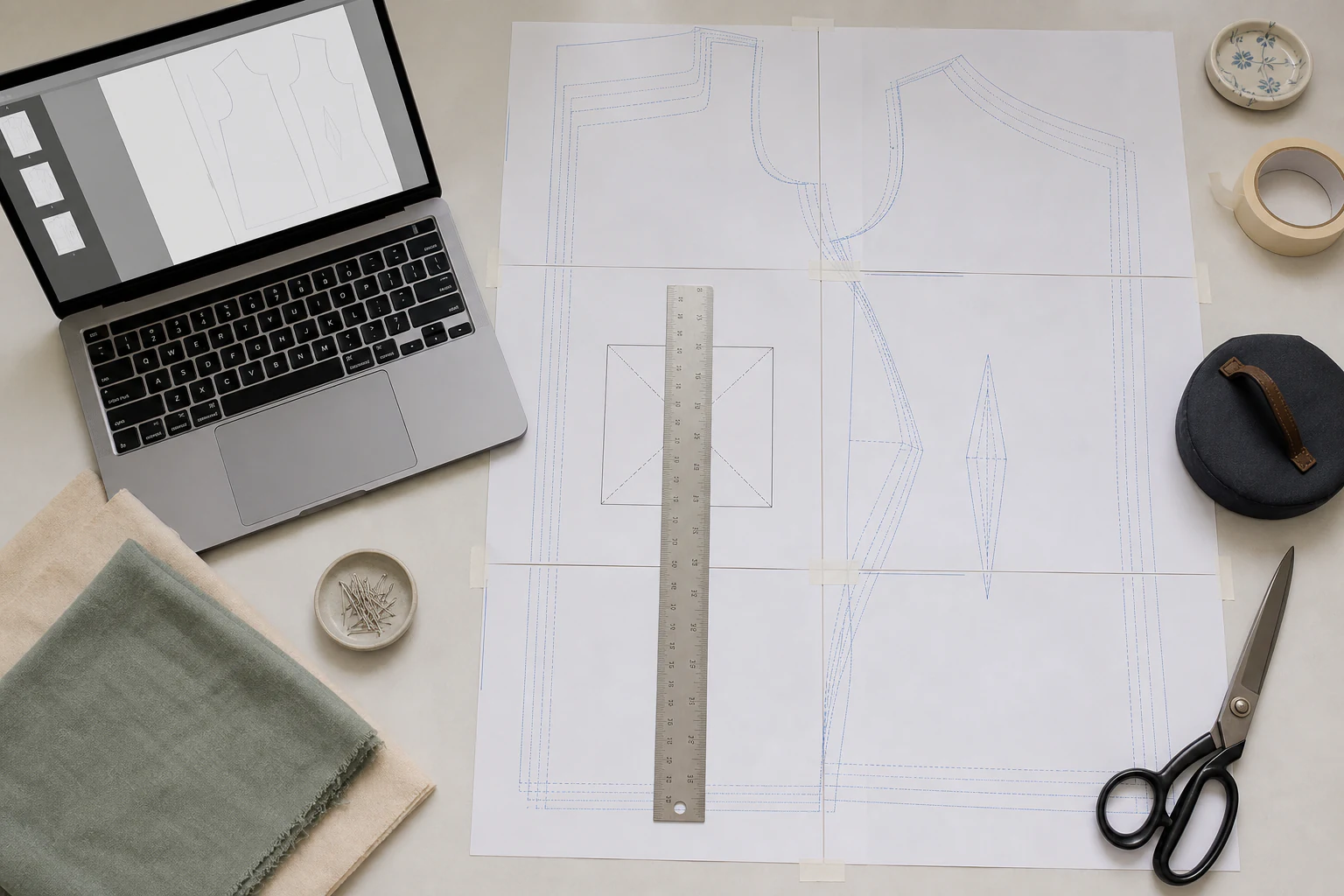
A PDF page contains physical dimensions independent of screen zoom. An A0 page remains an A0-sized design even when it appears small on screen. No Scale preserves those native dimensions while PrintTiler divides the page across the selected paper grid.
No Scale
Preserve the embedded PDF size
Use for a pattern whose designer expects the large-format page to print at its native dimensions.
Custom Fit > Print Size
Intentionally choose new dimensions
Use only when the pattern instructions specify a different physical output size or a known grading workflow.
Fit Width / Fit Height
Fit one sheet dimension
Useful for posters, but generally wrong for measurement-critical sewing patterns because it changes scale.
Prefer the PDF over an Image Export
Native PDF linework stays vector-based in PrintTiler 1.11.0 and retains its physical page dimensions. A JPEG or screenshot has only pixels and may have missing or unreliable DPI metadata, making actual-size output harder to establish independently.
Actual-Size Sewing Pattern Workflow
Read the pattern printing instructions
Find the intended page version, required paper, test-square dimensions, and any instructions about layers. Use the pattern maker's stated measurement as the authority for the final scale.
Open the large-format page in PrintTiler
If the PDF contains several large pages, use the page selector to choose the page you need. PrintTiler prints one selected source page at a time, so complete and verify each pattern page deliberately.
Match the printer paper
Select A4 for A4 paper or Letter for 8.5 x 11 in paper, then match Portrait or Landscape. Keep the same choices in the macOS print dialog; a paper substitution can trigger clipping or unwanted scaling.
Select No Scale and inspect Vector Output
No Scale preserves the PDF's native physical size. For native linework, the Print Quality section reports Vector Output instead of a bitmap DPI value.

Protect edges without changing the pattern size
Use Auto Margin to account for the selected printer's non-printable edges. Add overlap when repeated linework will make the sheets easier to trim and align. Check that Output still reports the intended Image Size.
Print only the test-square area first
Use Pages preview to identify the tile containing the pattern's test square or known scale reference. Print that page through the macOS dialog at 100% or Actual Size before committing the full paper set.
Measure the Pattern's Own Test Square
Do not use the paper edge as the reference. Home printers can have different non-printable margins on each side, while the test square belongs to the pattern content and is intended to confirm scale.
- Let the printed sheet lie flat without stretching or curling it.
- Measure the outside dimension of the test square horizontally.
- Measure it vertically as a separate check.
- Compare both results with the exact value stated by the pattern maker.
- Repeat the test once if the error is close to your acceptable tolerance.
- Print the remaining tiles only after both directions pass.
No Test Square Means No Independent Scale Check
If the pattern provides no test square, scale bar, or known measurement, use another dimension stated in the instructions. Without any known reference, do not assume a sharp preview proves actual physical size.
Prepare actual-size pattern tiles with PrintTiler
If the Test Square Is the Wrong Size
For a broader size diagnosis, use theexact-size and wrong-size workflow. If only outer pattern content disappears, use theprinter-edge clipping guide.
Margin, Overlap, and Pattern Assembly
Margin and overlap solve different problems. Margin protects content near the edge of each physical sheet. Overlap repeats pattern linework between neighboring tiles so it can be matched before taping.
Start with Auto Margin
Use the printable area reported for the actual printer and paper. A larger safe area can require more pages without resizing the pattern.
Use 5 mm Overlap as a Baseline
Repeated linework provides room to align pattern curves, grain lines, and notches across neighboring sheets.
Assemble Before Cutting Fabric
Match shared lines, tape from the back, recheck the test reference, and only then trace or cut the pattern pieces.
See the detailed margin and overlap workflow and thetiled-page assembly guide for trimming and taping methods.
Before Cutting Fabric
- The selected PDF is the correct large-format pattern version
- The pattern instructions provide a test square or known measurement
- No Scale is selected for the native-size PDF page
- The paper and orientation match the loaded printer paper
- The macOS print dialog uses 100% or Actual Size
- The measured test square passes in both directions
- Margin protects outer details and overlap repeats useful linework
- All tiled sheets are aligned and taped before any fabric is cut
Frequently Asked Questions
How do I print a PDF sewing pattern at actual size on a Mac?
Open the large-format PDF page in PrintTiler, select the paper actually loaded in the printer, use No Scale, keep the macOS print dialog at 100% or Actual Size, and measure the pattern test square before printing every tile.
Should I use the A0 file or the A4 and Letter home-print file?
Use the A0 or copy-shop page when PrintTiler needs to split one large pattern page across standard sheets. If the pattern is already divided into A4 or Letter pages, print that home-print version directly at 100% instead of tiling it again.
Which PrintTiler fit mode preserves a sewing pattern scale?
Use No Scale for a PDF whose embedded physical dimensions are already correct. Custom Fit and Print Size intentionally resize the pattern and should be used only when the pattern instructions specify a different target size.
Why is my sewing pattern test square the wrong size?
The common causes are Fit to Page in the macOS print dialog, the wrong paper preset, borderless overscan, or a printer driver that shrinks to the printable area. Match the paper, disable extra scaling, and print the test page again at 100%.
Can I print an A4 sewing pattern on Letter paper?
Not at guaranteed actual size without checking the pattern instructions. A4 and Letter have different dimensions, so substituting one can clip content or trigger scaling. Use the paper version supplied by the pattern maker whenever possible.
Does overlap change the sewing pattern scale?
Overlap repeats content between neighboring tiles for assembly. It should not change the pattern Image Size, but it can change page count and the assembled paper footprint. Confirm Image Size in Output and measure the test square.
Related Guides
Learn how PrintTiler handles native PDF pages and vector output, compare A4 and US Letter dimensions, or diagnoseexact-size printing on Mac, then calibrate a repeatable printer error with theprinter calibration workflow.