How to Print a Christmas Poster and Window Display at Home
Turn one finished 420 × 594 mm A2 portrait Christmas design into an opaque paper poster made from ordinary A4 or Letter sheets, then trim, join, and mount it for a wall or window display.
This is a worked example for one specific piece of artwork, not a template pack. The sample below is an original PrintTiler vector design released under CC0, and the numbers assume a uniform 5 mm margin on each edge and a 5 mm overlap. For a general walkthrough of splitting one image across pages, read thelarge-poster printing workflow, or change the finished size first with theposter printing calculator.
Worked quick start
Print the A2 Christmas Poster on A4 (3 × 3)
These are the exact settings behind the nine-sheet example. They are a starting point to compare against your printer, not a claim about what your printer can physically reach.
- Source
- One untiled 420 × 594 mm (A2 portrait) PDF page
- Printer and paper
- Your printer · A4 · Portrait
- Layout
- Custom Fit → Print Size · 420 × 594 mm · ratio locked
- Margin
- Custom · 5 mm on each of the four edges (worked example)
- Overlap
- 5 mm between adjacent sheets
- Crop marks and calibration
- Off · none applied
- Alignment
- Top-left before reading the page grid
- Result
- 3 columns × 3 rows · 9 sheets
- Print dialog
- All pages · 100% or Actual Size · single-sided · A4 portrait
Direct answer
How do you print a large Christmas poster at home on a Mac?
Open the single 420 × 594 mm Christmas PDF in PrintTiler, select the real printer and the A4 or Letter paper that is loaded, choose Custom Fit → Print Size at 420 × 594 mm with the aspect ratio locked (or No Scale if the PDF already measures that size), enter the margin and overlap you intend to use, review every page and the Output totals, then print all sheets at 100% or Actual Size, single-sided, and assemble them flat before mounting the poster.
Best for
- One finished Christmas design that should become an A2-size paper poster
- A wall or window display assembled from A4 or US Letter sheets
Not for
- Window clings, stencils, cut contours, or double-sided window printing
- Creating or editing the Christmas artwork itself
Works on
- macOS 12.0 or later
- One source PDF page with a defined physical size
Why PrintTiler instead
- See the assembled artwork and every sheet before using paper and ink
- Set an exact finished size, margin, and overlap instead of guessing a page count
What this example is not: it is not a physical printer proof, a promise of a particular paper finish, or a guarantee that every printer can hold a 5 mm margin. It also does not include Christmas artwork as an app template. The downloadable sample is an original vector composition provided so the whole workflow can be reproduced.
The worked example, and the settings it assumes
Everything below is an arithmetic example for A2 portrait Christmas poster artwork at420 × 594 mm (A2 portrait), split across the paper you already have. Six assumptions define the numbers:
- Paper: A4 (210 × 297 mm) and US Letter (8.5 × 11 in), each in Portrait and Landscape.
- Margin: a custom uniform 5 mm on every edge, 10 mm across each sheet side.
- Overlap: 5 mm repeated between adjacent sheets, and none on the outer edges.
- Crop marks: off. Printer calibration: none applied.
- Sizing: Custom Fit → Print Size with the aspect ratio locked, or No Scale only when the source PDF already measures the intended physical size.
- Alignment: top-left alignment chosen before reading the grid, so sheet boundaries stay reproducible.
These are worked assumptions, not a detected printer limit and not the app's automatic defaults. In real use, select the actual printer and the paper that is loaded, keep Auto Margin (it may produce different values), and review the updated Pages and Output totals. Use a 5 mm margin only when the printer's printable area supports it, and match the paper size and orientation in the print panel.
Sample source artwork and the page grid
The sample is one untiled 420 × 594 mm source page that you open in PrintTiler and slice yourself. It is deliberately not a ready-to-print set of A4 pages, and it is not a multi-page source document to export as a batch.
Download the untiled sample source PDF (christmas-poster-a2.pdf)
Artwork is an original PrintTiler geometric vector composition made for these guides. It is not an app template library, not AI-generated imagery, and not a photograph, app screenshot, or a physical printer proof. The website examples and the downloadable sample PDFs are released for reuse under CC0; see theseasonal example license. The PDF is a single, untiled source page to open inside PrintTiler, not a ready-to-print set of A4 pages and not a batch of several source pages.

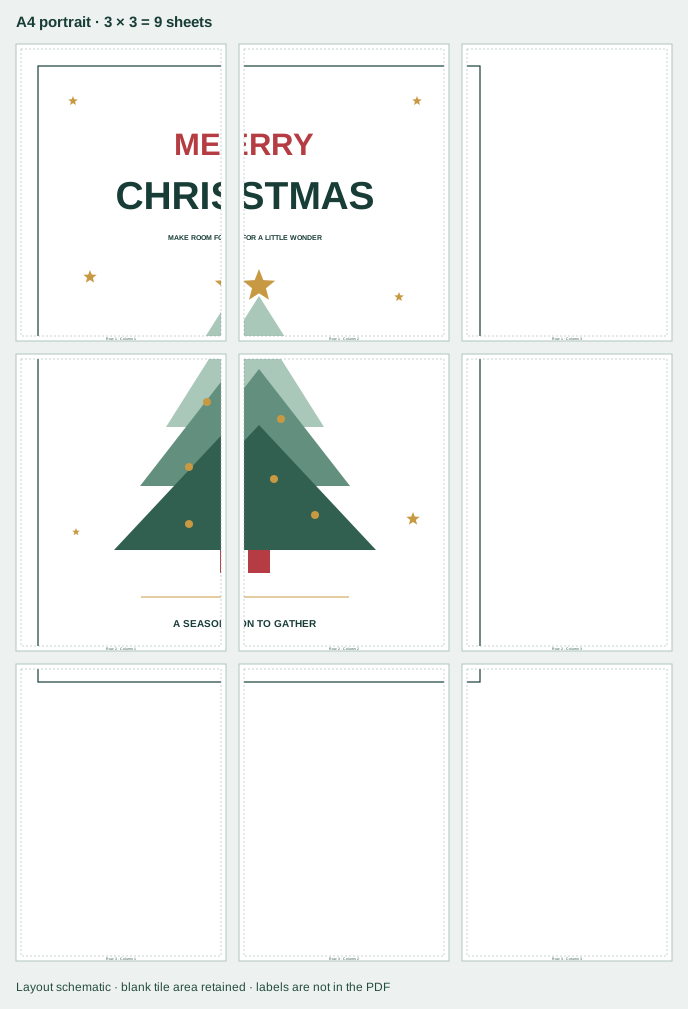
Sheet counts for four paper and orientation choices
The table repeats the same finished artwork across A4 and US Letter in both orientations. Usable area is the paper minus the 5 mm margin on each edge; the grid applies the 5 mm overlap between neighboring sheets.
| Paper | Orientation | Usable area per sheet | Columns × rows | Sheets |
|---|---|---|---|---|
| A4 | Portrait | 200 × 287 mm | 3 × 3Primary diagram | 9 |
| A4 | Landscape | 287 × 200 mm | 2 × 4 | 8 |
| US Letter | Portrait | 205.9 × 269.4 mm | 3 × 3 | 9 |
| US Letter | Landscape | 269.4 × 205.9 mm | 2 × 3 | 6 |
Read these as worked estimates for the assumptions above, not as printer limits. Each row shows the usable area after a 5 mm margin on each edge, the resulting sheet grid, and the sheet total. Change the paper, margin, or overlap with your real printer and let PrintTiler report the updated count.
Print the sheets at the intended size
- Send all generated pages to the printer, single-sided, so every tile is on its own sheet.
- Use 100% or Actual Size in the macOS print dialog. Do not add a second fit-to-page or scale-to-fit step.
- Select the same paper size and orientation that you chose in PrintTiler, and confirm them in the print panel before printing.
- Check Output for the assembled size, page count, margins, and overlap, and inspect Pages for the content of every sheet.
- Print two neighboring sheets first and confirm that the printed scale and the seam match before committing the full set.
- Keep the source PDF vector-based where possible; embedded rasters are printed as they are and are not sharpened by tiling.
Exporting the tiled layout is optional: Export → PDF Document saves the generated pages as one multi-page PDF for printing later at 100%. That export is a tiled output, not a way to merge or re-tile a multi-page source document. For this A2 paper poster, the assembled sheets are trimmed and joined before the poster is mounted on a wall or window.
Why an A2 design does not automatically mean four A4 sheets
It is tempting to divide 420 × 594 mm by 210 × 297 mm and conclude that A2 is exactly four A4 sheets. That comparison uses the paper's outer dimensions and ignores everything the printer cannot reach. In this worked example, a 5 mm margin on every edge reduces an A4 portrait sheet to 200 × 287 mm of usable area, and a 5 mm overlap means each additional column advances only 195 mm while each additional row advances 282 mm.
- Across: two columns cover 200 + 195 = 395 mm, which is short of 420 mm; three columns cover 200 + 195 + 195 = 590 mm.
- Down: two rows cover 287 + 282 = 569 mm, which is short of 594 mm; three rows cover 287 + 282 + 282 = 851 mm.
- Result: a 3 × 3 grid and nine A4 portrait sheets, with the final column and row only partly covered.
That is why the A2-to-four-sheets rule only holds when a printer can use the full sheet with no margin and no overlap. It is also why the table lists Letter Portrait at nine sheets but Letter Landscape at six, and A4 Landscape at eight: the landscape grid changes the number of sheets and, just as importantly, where the seams fall.
The orientation tradeoff is practical rather than purely numerical. A4 Landscape needs eight sheets, but it changes the seam pattern: wider sheets, more rows, and a different set of details cut by joins. Choose the orientation whose seams avoid the lettering, faces, or focal illustration in your design, and verify the reported output size rather than assuming that the smaller sheet count is the better poster. For the arithmetic behind exact-size printing, seehow to print an image at exact size.
Window display: an opaque paper poster, not a cling or stencil
This project produces an opaque paper poster. It is not a window cling, a stencil, a cut contour, or a double-sided print, and it does not require a specialty window printer. The print face should point toward the side the display will be viewed from; if you assemble the poster on the floor or a table, keep that viewing side up while you work.
- Print and inspect all sheets before attaching anything to the surface.
- Trim and join the sheets into one flat poster first. Taping a multi-sheet poster directly onto glass makes every seam harder to correct.
- Test the attachment method on a small, hidden area of the wall or window. Use a method you know can be removed from that specific surface.
- Mount the assembled poster and check that it lies flat, with the printed face toward the viewer.
This guide does not promise suitability for glass, condensation, direct sun, outdoor weather, or a particular adhesive. Those depend on the surface, the paper, and the mounting product you choose.
Quality, safe margins, overlap, and trimming
A native PDF keeps its text and linework vector-based through tiling and through an optional tiled PDF export. Embedded raster images inside a PDF remain raster images; splitting the page does not sharpen them or add detail. If your own design is a photo or a bitmap, start from the largest original you have and expect the usual viewing-distance tradeoff.
- Safe margins: margin keeps content inside the printable area. Auto Margin uses the printer-reported safe area; the 5 mm value here is only the example. If an edge is clipped, increase the margin rather than trimming the design.
- Overlap: the repeated 5 mm strip is working room for alignment. Trim one side of a seam inside that strip and align the surviving image details, not the paper edges.
- Trim and join: lay the sheets out in order, trim one side per seam, butt the trimmed edge over the repeated strip, and tape from the back. The separate tiled-print assembly guide covers trimming, tape, and mounting.
- Crop marks: off in this worked example. If you turn them on for your own job, keep them inside the margin and use them as trimming guidance, not as content.
For margin and overlap behavior in more detail, use the margin and overlap guide. For PDF-specific sizing and export choices, read how to print large PDFs.
Print the Christmas poster in six steps
Open the untiled 420 × 594 mm source PDF
Download the sample source PDF or open your own finished Christmas artwork. Open the single source page in PrintTiler; do not start from a screenshot, a phone photo of a screen, or a file that is already split into A4 pages. If your design contains a year, date, or wording you want to change, edit it in your design tool before opening the file, because PrintTiler tiles existing artwork and is not a text editor or design tool.
Select the printer, A4 or Letter paper, and Portrait orientation
Select the printer that will actually print the sheets and confirm its status. Choose A4 or US Letter to match the paper loaded in the tray, then choose Portrait for the primary 3 × 3 example, or Landscape to compare the 2 × 4 and 2 × 3 alternatives. The paper and orientation selected here must also be selected in the macOS print panel.
Set Custom Fit → Print Size to 420 × 594 mm
Choose Custom Fit → Print Size, keep the aspect ratio locked, and enter 420 mm for the width so the height follows at 594 mm. For this sample you can instead use No Scale, because the PDF page already measures 420 × 594 mm; No Scale is appropriate only when the PDF physical dimensions are already exactly what you want.
Enter the 5 mm margin and 5 mm overlap, then align top-left
For the worked example, enter a custom uniform 5 mm margin on each of the four edges, a 5 mm overlap, and leave crop marks off. Before reading the page grid, set Alignment to top-left so the seam positions are reproducible. In real use, start with Auto Margin for the chosen printer, treat its values as authoritative, and use the 5 mm example margin only when the printer printable area supports it.
Check all nine pages, the seams, and the Output totals
Review the assembled preview for the whole design, then open Pages and inspect all nine A4 portrait sheets. Note where seams cross lettering, faces, or decorative motifs, and adjust the source design in your design tool or the finished size in PrintTiler if a seam makes an important detail hard to align. Confirm the page count, assembled size, margin, and overlap in Output before printing.
Print every sheet at 100%, assemble flat, then mount
Print all pages at 100% or Actual Size, single-sided, with the same paper and orientation and without another scale-to-fit step. Print two neighboring sheets first to verify the physical scale and the seam. Trim one side of each seam, align the repeated 5 mm strip, and tape from the back to assemble the poster flat. Only then mount the finished opaque paper poster with an attachment method you have tested on a hidden area of the surface.
After assembly: check the display before hanging it
With the poster flat, check the viewing distance and the lighting. A4 and Letter joins are visible at close range even when they are well aligned, so stand where the audience will stand and confirm that the joins do not cut through the greeting or the main illustration. If a seam is distracting, adjust the design or the finished size, then inspect the revised layout before printing again. Do not mix tiles prepared at different sizes.
When the poster is ready, mount it with a tested removable method and keep the printed face toward the viewer. Do not tape across the image face, and do not assume that a paper poster will survive condensation or weather.
Frequently asked questions
Why does a 420 × 594 mm Christmas poster need nine A4 portrait sheets instead of four?
A2 is four A4 sheets only as bare paper area. The worked example keeps a 5 mm margin on each edge and a 5 mm overlap, so each A4 portrait sheet has 200 × 287 mm of usable area and neighboring sheets advance 195 mm across and 282 mm down. Three columns cover 590 mm, while two cover only 395 mm, and three rows cover 851 mm, while two cover only 569 mm and fall short of 594 mm. That gives a 3 × 3 grid and nine sheets. Check Output with your own printer, margin, and overlap for the real count.
Can I print the same A2 Christmas poster on US Letter paper?
Yes. With the same worked assumptions, US Letter Portrait gives a 3 × 3 grid and nine sheets, while US Letter Landscape gives a 2 × 3 grid and six sheets. Letter is narrower and shorter than A4, so usable area and seam placement differ. Select US Letter in PrintTiler and in the macOS print panel, then verify the count and output size before printing.
Should I use A4 Portrait or Landscape for this Christmas poster?
Portrait gives the primary 3 × 3 grid and nine sheets; Landscape gives a 2 × 4 grid and eight sheets on A4. Fewer sheets is not automatically better: landscape changes where every seam crosses the artwork, and a tall column of four sheets can be harder to align by hand. Preview both orientations and choose the one whose seams avoid the lettering and focal illustration, then print a two-sheet test.
Is this a window cling, a stencil, or a cut file?
No. This guide prints an opaque paper poster on standard A4 or Letter sheets, trims the pages, and joins them into one flat poster before it is attached to a wall or window. It does not describe a cling, stencil, cut contour, double-sided print, or specialty window-printing equipment, and it does not promise that paper is suitable for glass, outdoor, or wet conditions. Print the face toward the side it will be viewed from.
Do I have to use exactly 5 mm margin and 5 mm overlap?
No. The 5 mm margin and 5 mm overlap are worked assumptions that make the example counts reproducible. In real use, choose the actual printer, keep Auto Margin so content stays inside the reported printable area, and review the updated Pages and Output. A larger margin can reduce usable area and add sheets, while a smaller overlap leaves less repeated content for trimming and alignment. Use the example values only when your printer can print that close to the paper edge.
Why do my printed Christmas sheets not line up at the seam?
Check for a second scaling step in the macOS print dialog, a paper size or orientation that does not match the app, or a blocked margin that shifted the content. Print two neighboring sheets at 100% or Actual Size, single-sided, and compare a known distance before printing the rest. Printer feed skew and small paper-position differences are physical, so trim one side of each seam and align the repeated 5 mm strip rather than relying on the paper edge.
Next: the continuous New Year banner
The companion example prints one uninterrupted 900 × 180 mm Happy New Year banner in a single row of sheets, with no annual date inserted. Continue withhow to print a continuous New Year banner at hometo compare a single-row seam layout with this poster grid.