How to Print a New Year Banner Across Multiple Pages on Mac
Make one continuous Happy New Year banner from ordinary printer paper. This worked example turns a 90 × 18 cm design into four landscape A4 or Letter tiles, joined end to end rather than hung as separate letter flags.
Direct answer
How do you print a wide New Year banner at home?
Open one finished banner image or PDF page in PrintTiler, choose the real printer and landscape A4 or Letter paper, set the final width with Custom Fit → Print Size and keep the aspect ratio locked. Review safe margins, overlap, and every tile; test two neighbors, then print at 100% or Actual Size, single-sided, and join the strip flat.
Best for
- One continuous party, classroom, or wall banner
- A finished image or single PDF page wider than a home-printer sheet
Not for
- Designing or editing greetings inside PrintTiler
- Re-tiling a PDF already supplied as individual letter flags
Works on
- macOS 12.0 or later
- A Mac-connected printer with the selected paper loaded
Why PrintTiler instead
- Set the finished banner width without stretching the letters
- Compare paper orientation and inspect letter-crossing seams before printing
Worked quick start
90 × 18 cm banner: four sheets in one row
- Source
- One untiled 900 × 180 mm PDF page
- Paper
- A4 or US Letter · Landscape
- Sizing
- Custom Fit → Print Size · 900 × 180 mm · ratio locked
- Worked margins and overlap
- Custom 5 mm on each edge · 5 mm overlap
- Other assumptions
- Top-left alignment · crop marks off · no calibration
- Expected grid
- 4 columns × 1 row · 4 sheets
- Final printing
- 100% or Actual Size · single-sided · matching paper and orientation
Actual printer-safe margins may change these counts. Inspect the updated layout before printing.
Choose a continuous banner, not a pre-paginated letter pack
A continuous banner has one composition: the greeting, decorations and background extend across the whole strip. Tiling divides that existing composition into printable sheets. The paper joins are construction seams, not a request to put each letter on its own page.
Many downloadable New Year banners instead provide one letter or flag on each page. Those files are already prepared for a regular printer: follow their supplied paper-size and scaling instructions. Do not turn a multi-page letter pack into an oversized tiled source. For a continuous design, export the entire banner as one image or one large PDF page first.
Choose your finished wording before tiling. Edit a year, name, or message in the original design tool and export again; PrintTiler is a native Mac app for preparing the print layout, not a greeting editor. Our year-neutral sample can be reused next season.
The worked example, and the settings it assumes
Everything below is an arithmetic example for Continuous Happy New Year banner artwork at900 × 180 mm (90 × 18 cm; about 35.43 × 7.09 in), split across the paper you already have. Six assumptions define the numbers:
- Paper: A4 (210 × 297 mm) and US Letter (8.5 × 11 in), each in Portrait and Landscape.
- Margin: a custom uniform 5 mm on every edge, 10 mm across each sheet side.
- Overlap: 5 mm repeated between adjacent sheets, and none on the outer edges.
- Crop marks: off. Printer calibration: none applied.
- Sizing: Custom Fit → Print Size with the aspect ratio locked, or No Scale only when the source PDF already measures the intended physical size.
- Alignment: top-left alignment chosen before reading the grid, so sheet boundaries stay reproducible.
These are worked assumptions, not a detected printer limit and not the app's automatic defaults. In real use, select the actual printer and the paper that is loaded, keep Auto Margin (it may produce different values), and review the updated Pages and Output totals. Use a 5 mm margin only when the printer's printable area supports it, and match the paper size and orientation in the print panel.
Sample source artwork and the page grid
Download this one-page, untiled Happy New Year source and open it in PrintTiler. It is a 5:1 composition at 900 × 180 mm, not four pre-made printer pages.
Download the untiled sample source PDF (new-year-banner-900x180mm.pdf)
Artwork is an original PrintTiler geometric vector composition made for these guides. It is not an app template library, not AI-generated imagery, and not a photograph, app screenshot, or a physical printer proof. The website examples and the downloadable sample PDFs are released for reuse under CC0; see theseasonal example license. The PDF is a single, untiled source page to open inside PrintTiler, not a ready-to-print set of A4 pages and not a batch of several source pages.

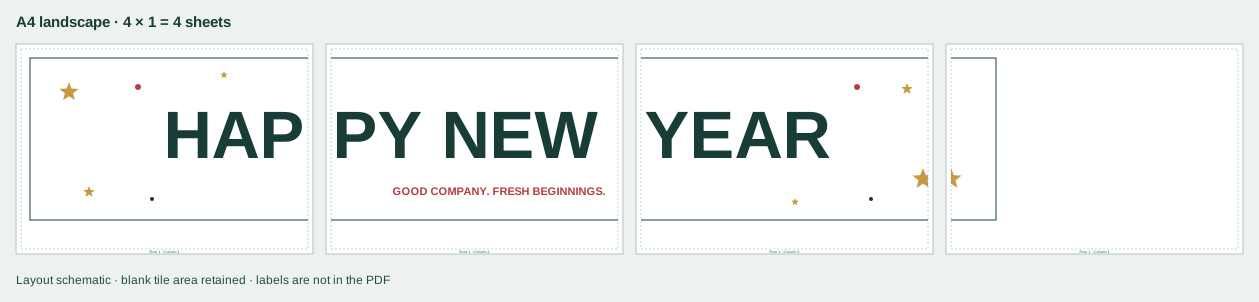
Sheet counts for four paper and orientation choices
The table repeats the same finished artwork across A4 and US Letter in both orientations. Usable area is the paper minus the 5 mm margin on each edge; the grid applies the 5 mm overlap between neighboring sheets.
| Paper | Orientation | Usable area per sheet | Columns × rows | Sheets |
|---|---|---|---|---|
| A4 | Portrait | 200 × 287 mm | 5 × 1 | 5 |
| A4 | Landscape | 287 × 200 mm | 4 × 1Primary diagram | 4 |
| US Letter | Portrait | 205.9 × 269.4 mm | 5 × 1 | 5 |
| US Letter | Landscape | 269.4 × 205.9 mm | 4 × 1 | 4 |
Landscape saves one sheet here, but Letter and A4 place joins at different positions. A change in margin, overlap, source proportions, or finished size can change the grid; the actual app preview takes precedence.
Print the sheets at the intended size
- Send all generated pages to the printer, single-sided, so every tile is on its own sheet.
- Use 100% or Actual Size in the macOS print dialog. Do not add a second fit-to-page or scale-to-fit step.
- Select the same paper size and orientation that you chose in PrintTiler, and confirm them in the print panel before printing.
- Check Output for the assembled size, page count, margins, and overlap, and inspect Pages for the content of every sheet.
- Print two neighboring sheets first and confirm that the printed scale and the seam match before committing the full set.
- Keep the source PDF vector-based where possible; embedded rasters are printed as they are and are not sharpened by tiling.
Exporting the tiled layout is optional: Export → PDF Document saves the generated pages as one multi-page PDF for printing later at 100%. That export is a tiled output, not a way to merge or re-tile a multi-page source document. For this continuous banner, the assembled sheets are trimmed and joined end to end into one strip.
Keep the 180 mm artwork height in one row
With the worked 5 mm margins, landscape A4 provides a printable area of 287 × 200 mm. Landscape Letter provides 269.4 × 205.9 mm. Both are tall enough for this 180 mm design, so there is no horizontal join running along the banner. This does not mean that every wide banner fits one row: a taller source or a printer with larger safe margins can add a second row.
Across landscape A4, three columns cover 287 + 282 + 282 = 851 mm, short of the required 900 mm; a fourth column is needed. The last tile is only partly covered by artwork. That blank space is expected, not evidence that the app has shrunk the design. Trim outer blank paper after joining the artwork.
Compare Portrait and Landscape in the poster printing calculator before committing to the finished size. For the complete general workflow, use the image-across-multiple-pages guide. A stated width is the artwork width, not the untrimmed paper-strip footprint.
Print and assemble the banner in six steps
Open one continuous banner design
Download the 900 × 180 mm sample source PDF, or prepare your own complete banner as one image or PDF page. Open that source page in PrintTiler. If a purchased file already has a separate letter on each A4 or Letter page, print those supplied pages directly instead of tiling them again. Change a year, date, name, or greeting in your design tool before opening the finished file in PrintTiler.
Select the real printer and landscape paper
Choose the printer and the A4 or US Letter sheets actually loaded in it. Select Landscape for the four-sheet worked example. This rotates the paper, not the banner artwork. Match that same paper and orientation in the macOS print panel.
Set the finished banner to 900 × 180 mm
Choose Custom Fit → Print Size, lock the aspect ratio, and enter a width of 900 mm (90 cm, about 35.43 inches). The 5:1 source should become 180 mm high (18 cm, about 7.09 inches). No Scale also preserves the supplied PDF at its intended size; use it only when your own PDF already has the physical dimensions you want.
Check safe margins, overlap, and top-left alignment
The schematic assumes custom 5 mm margins on all four edges, 5 mm overlap, crop marks off, no calibration, and top-left alignment. Only use those margins if your printer supports them. For your actual printer, start with Auto Margin, then review the resulting page count rather than forcing the example count.
Inspect the single row and test one letter-crossing seam
Check Assembled, then Pages: under the example assumptions there are four columns and one row. Inspect the joins through HAPPY NEW YEAR and the smaller subtitle. Print two neighboring tiles at 100% or Actual Size, single-sided, before the complete set. Confirm that letter strokes align and that the 5 mm repeated strip gives enough trimming room.
Print and join the strip on a flat surface
Print the remaining tiles using the same paper, orientation, 100% scale, and single-sided setting. Arrange the four sheets left to right, trim only one side of each join, align the repeated artwork, and tape the seams from the back. Trim the outer blank paper to the artwork boundary after assembly. Check the full greeting before mounting with a surface-appropriate method.
Inspect the lettering at every seam
A continuous design will not necessarily put joins between words. Top-left alignment makes the sample schematic reproducible; another alignment can move the artwork relative to the grid. Use the actual Pages preview to find joins through thin letter strokes and small subtitle text. If one is distracting, adjust the source composition or finished size, then inspect the revised layout. Do not mix tiles prepared at different sizes.
PDF text and vector decorations stay vector-based through tiling and PDF export. Photos and other embedded raster images retain their original resolution. A crisp-looking PDF does not remove paper-feed error: the two-sheet test should check both letter alignment and one known physical distance.
Use the margin and overlap guide to plan trimming room, and the assembly guide for back-taping neighboring sheets. For later printing, follow the PDF workflow when exporting the tiled layout. For measurement-critical output, verify the physical dimensions.
Join the strip on a flat table before mounting it. Test removable fixings on the actual surface, and avoid tension that pulls the paper seams apart. No adhesive, weather resistance, or finished physical print result has been tested for this digital example.
Frequently asked questions
How do I print a Happy New Year banner across multiple pages on a Mac?
Start with one continuous image or PDF page, open it in PrintTiler, select the actual printer and paper, and set the finished width with Custom Fit → Print Size and the aspect ratio locked. Add printer-safe margins and overlap, inspect every tile, then print at 100% or Actual Size, single-sided. The 900 × 180 mm example uses four landscape A4 or Letter sheets with 5 mm margins and overlap.
Is the sample a banner with one letter per sheet?
No. It is one uninterrupted 900 × 180 mm design, divided into neighboring tiles. A join can pass through a letter. If your file already contains separate printable letter flags or bunting pages, print those original pages directly; they do not need PrintTiler to split them again.
Why does landscape use four sheets while portrait uses five?
With 5 mm margins, an A4 landscape sheet has a usable width of 287 mm and a horizontal tile step of 282 mm after overlap. Three columns cover only 851 mm, so a 900 mm banner needs four. A4 portrait has 200 mm usable width and a 195 mm step; four columns cover only 785 mm, so it needs five. The 180 mm artwork height fits one usable row in both orientations.
Can I change the year or greeting in PrintTiler?
Edit the wording in the original design application before exporting the finished image or PDF. PrintTiler controls the printed size and tiled layout, not the text or artwork. The supplied website example says HAPPY NEW YEAR without a year, so it can be reused without a date change.
Can I print the same banner on US Letter instead of A4?
Yes. With the example 5 mm margins and 5 mm overlap, Letter landscape also needs four columns and one row; Letter portrait needs five columns and one row. The seam positions differ from A4 because the paper dimensions differ. Choose the actual loaded paper in both the app and the print dialog.
Why has my banner gained a second row or an extra column?
Check the finished dimensions, the source aspect ratio, the paper orientation, margins and overlap. A taller design or larger safe margins can require more rows; a wider design or larger overlap can require more columns. Use the actual Pages and Output totals, and do not squeeze or stretch lettering merely to force the four-sheet example.
Need a taller seasonal display?
The companion A2 Christmas poster and window-display case uses a multi-row grid instead of this continuous single-row banner.